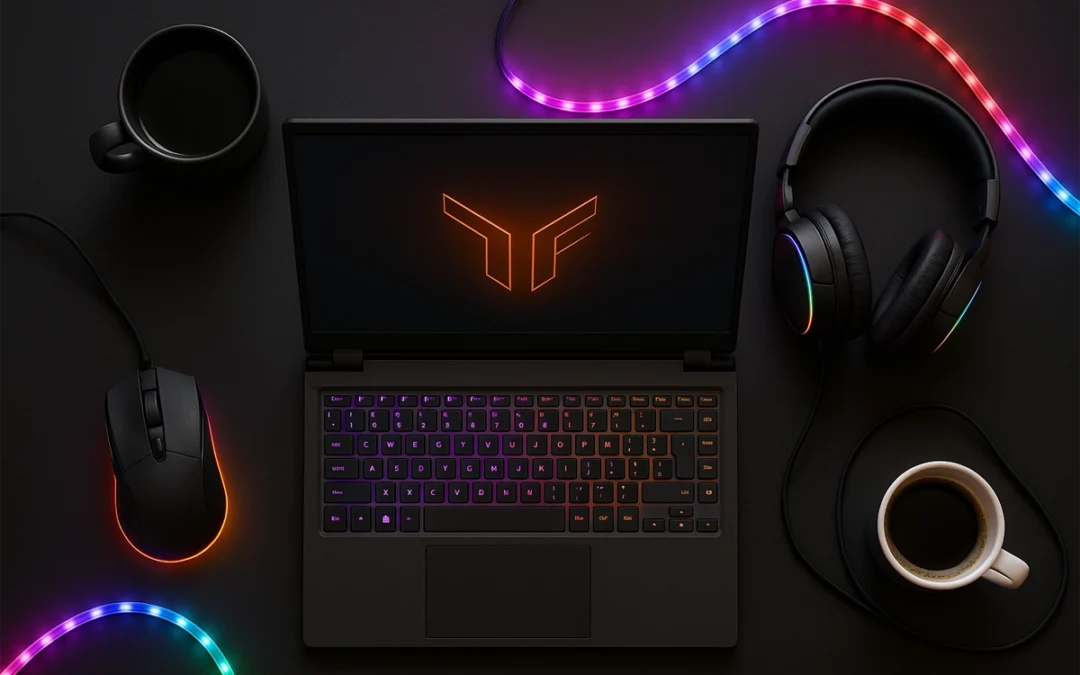
Gaming is more popular than ever, so powerful, affordable gaming laptops are needed. Fighting in Apex Legends, exploring Elden Ring, or building empires in Civilization VI requires a smooth laptop.
Budgeting ₹1 lakh may seem limited, but this price range offers a reliable mid-tier gaming laptop that balances mobility, performance, and future-proofing.
In This Post
Key Features to Look for in a Gaming Laptop Under ₹1 Lakh
You want every rupee to matter when you’re going to spend nearly a lakh on a gaming laptop. Before you click “Buy Now,” make sure to review these features and specifications that cannot be negotiated.
Processor (CPU)
Seek out AMD Ryzen 5 or Ryzen 7 (4000, 5000 series) or Intel Core i5 or i7 (10th, 11th, or 12th Gen). Strong multi-thread performance is provided by these chips for multitasking, streaming, and gaming.
Graphics Card (GPU)
This is the gaming engine in your laptop. Expect NVIDIA GTX 1650, RTX 3050, or, if you’re lucky, RTX 4050 in more recent models at this price. Your laptop’s ability to run contemporary games at medium to high settings is determined by the GPU.
RAM and Storage
Although some laptops still have 8GB of RAM (upgradable), a minimum of 16GB is preferred in 2025. SSDs (at least 512GB) significantly speed up game loads and boot times. Steer clear of laptops with only HDDs.
Display Quality and Refresh Rate
The standard Full HD resolution is 1080p. If you enjoy competitive or shooter games, aim for a refresh rate of at least 120 Hz. Improved color accuracy and viewing angles are provided by IPS panels.
Battery Life and Cooling System
While 4–6 hours of general use is reasonable, gaming laptops aren’t known for having long battery lives. Performance throttling during prolonged sessions can be avoided with effective cooling using liquid metal technology or dual fans.
Top 5 Best Gaming Laptops Under ₹1 Lakh (2025 Edition)
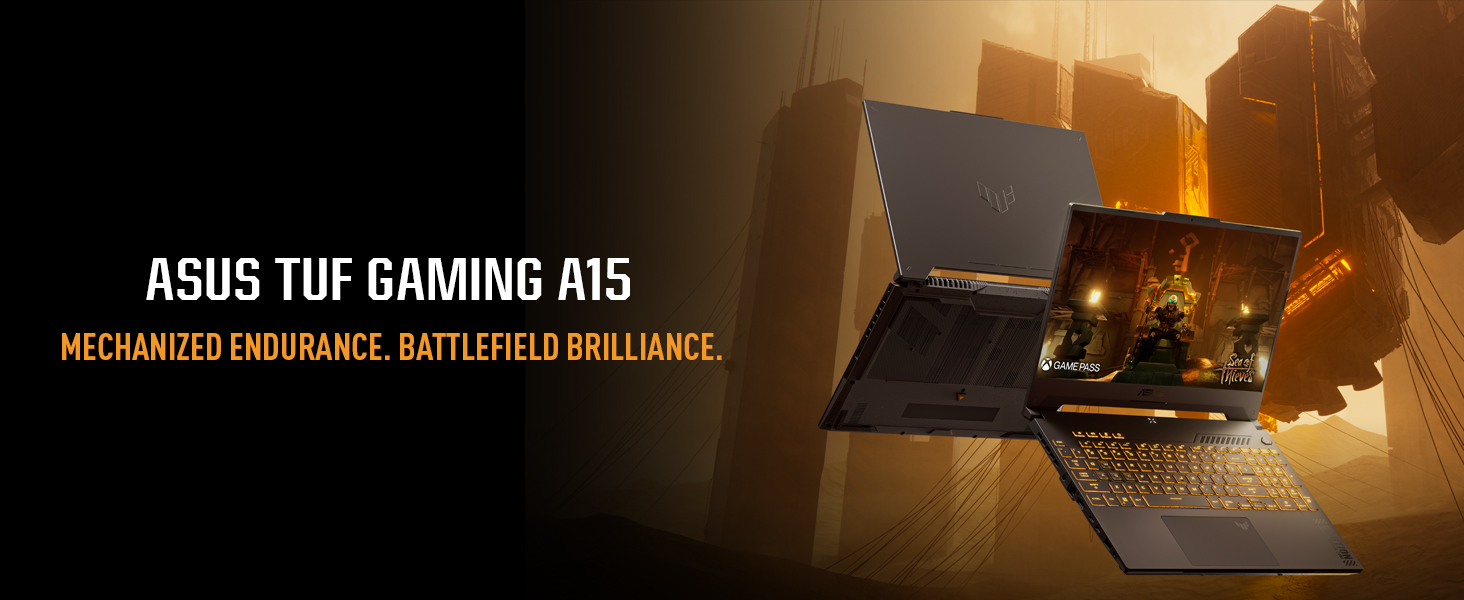
Currently priced under ₹1 lakh, the ASUS TUF Gaming A15 is one of the most affordable gaming laptops available in India. The TUF (The Ultimate Force) series is renowned for its robust specifications, gamer-focused design, and military-grade durability.
Specs Overview:
Processor: AMD Ryzen 7 7435HS
Graphics: NVIDIA GeForce RTX 4060 8GB
Display: 15.6” Full HD (1920×1080), 144Hz, IPS-level
RAM: 16GB DDR5 (expandable)
Storage: 512GB NVMe SSD
Battery: 90Wh, up to 6 hours usage
Weight: 2.2 kg
Performance in Real-World Usage:
The majority of AAA games, including Hogwarts Legacy, GTA V, and Cyberpunk 2077, can be played at high settings and with respectable frame rates. Ray tracing is supported by the RTX 4060, which allows you to experience high-end visual effects without having to pay the premium price.
Dual fans and anti-dust tunnels provide reliable thermal management. Even after a lengthy gaming session, you won’t experience performance issues or burning hands. The laptop is perfect for gamers who also experiment with content creation because it can handle demanding applications like Adobe Premiere Pro or Blender with ease and multitasks quickly.
Why It Is Unique:
SSD and RAM upgrades for future-proofing
Outstanding construction quality and aesthetically pleasing design geared toward gaming
In fast-paced games, a high refresh rate display improves fluidity.
Excellent value with the Ryzen 7 and RTX 4060 combination
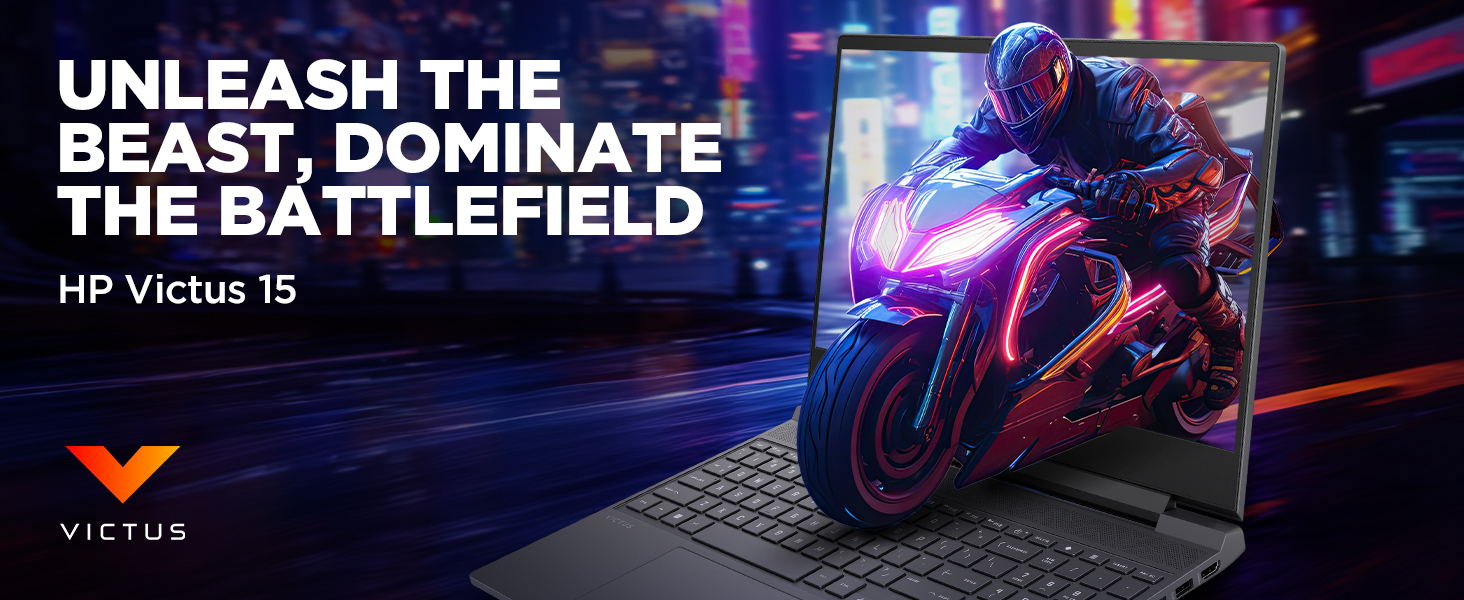
For gamers looking for a device that strikes a balance between price and performance, the HP Victus 15 is an appealing option. This laptop’s 13th Gen Intel Core i5-13420H processor and NVIDIA GeForce RTX 3050 GPU allow it to run contemporary games with ease.
Key Specifications:
Processor: Intel Core i5-13420H
Graphics: NVIDIA GeForce RTX 4050 6GB GDDR6
Display: 15.6-inch Full HD (1920×1080), 144Hz IPS panel
Memory: 16GB DDR4 RAM
Storage: 1TB SSD
Operating System: Windows 11 Home
Performance Overview:
At medium to high settings, the Intel Core i5-13420H and RTX 4050 work together to provide fluid gameplay in games like Call of Duty: Warzone, Apex Legends, and Cyberpunk 2077. The fluid visuals provided by the 144Hz refresh rate display improve the gaming experience, particularly in fast-paced games.
The laptop maintains ideal temperatures during prolonged gaming sessions thanks to effective thermal management. Multitasking and future-proofing are made possible by the 16GB RAM, which guarantees the laptop will still be relevant for future game releases.
Why Choose HP Victus 15?
Design: Its sleek, contemporary appearance makes it appropriate for both professional and gaming settings.
Balanced Performance: Provides a good balance of CPU and GPU power appropriate for the majority of contemporary games.
High Refresh Rate Display: By minimizing motion blur, the 144Hz screen guarantees fluid images.
Upgradability: By increasing RAM and storage, users can prolong the life of their laptops.
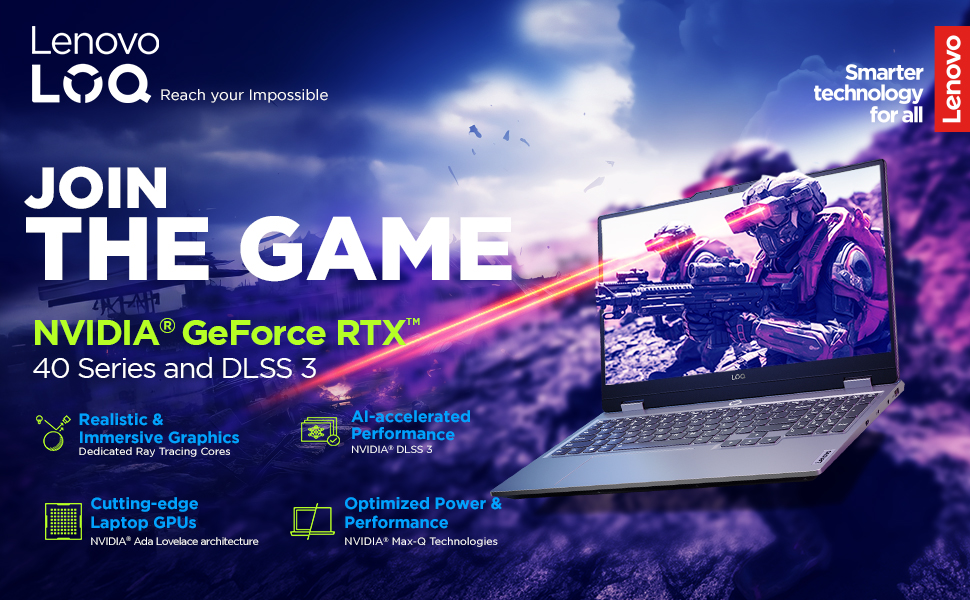
Lenovo’s IdeaPad Gaming 3 series has been a favorite among budget-conscious gamers, and the Ryzen 7 7435HS variant continues this tradition. Paired with the NVIDIA GeForce RTX 4060-8GB, this laptop offers commendable gaming performance without breaking the bank.
Key Specifications:
Processor: AMD Ryzen 7 7435HS
Graphics: NVIDIA GeForce RTX 4060-8GB GDDR6
Display: 15.6-inch Full HD (1920×1080), 144Hz FHD
Memory: 16GB DDR4 RAM
Storage: 512GB SSD
Operating System: Windows 11 Home
Performance Overview:
Because of its powerful multi-threaded performance, the Ryzen 7 7435HS is a good choice for both productivity and gaming tasks. Users can anticipate fluid gameplay in games like Assassin’s Creed Valhalla, Shadow of the Tomb Raider, and Fortnite at medium to high settings when paired with the RTX 4060-8GB.
The laptop’s cooling system efficiently controls heat during extended use, and the 144Hz display guarantees a responsive gaming experience. Furthermore, the overall user experience is improved by the laptop’s keyboard design and build quality.
Why Choose Lenovo IdeaPad Gaming 3:
Dependable Build Quality: Lenovo is known for producing laptops that last a long time.
Excellent CPU Performance: The Ryzen 7 7435HS performs exceptionally well in multitasking and gaming situations.
Ray tracing capabilities are available at an affordable price with the RTX 4060-8GB option.
Upgradeable Components: To accommodate changing needs, users can increase storage and RAM.
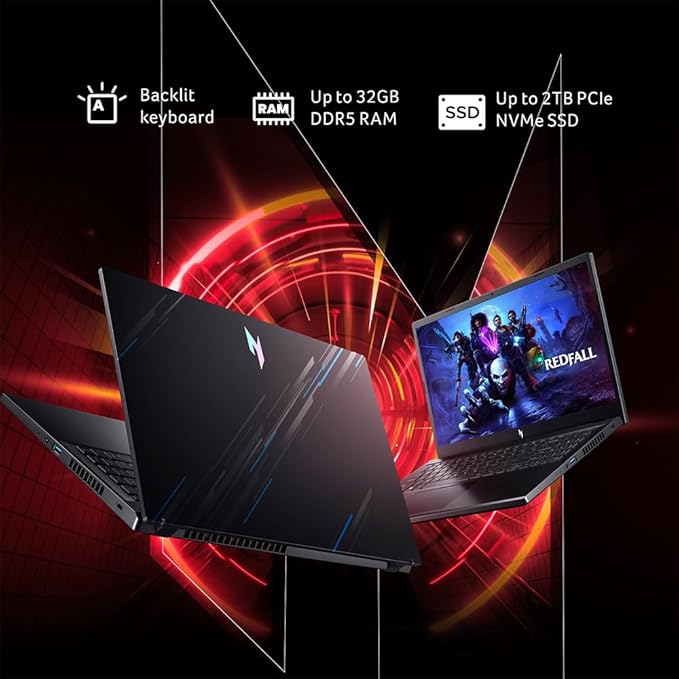
Gamers who want great performance without breaking the bank are the target market for the Acer Nitro V series. This laptop can handle the most demanding games thanks to its latest 13th Gen Intel Core i7 processor and NVIDIA GeForce RTX 4050-6GB GPU.
Key Specifications:
Processor: Intel Core i5-13620H
Graphics: NVIDIA GeForce RTX 4050 6GB GDDR6
Display: 15.6-inch Full HD (1920×1080), 165Hz LED-backlit TFT LCD
Memory: 16GB DDR5 RAM
Storage: 512GB SSD
Operating System: Windows 11 Home
Performance Overview:
For gaming, the Intel Core i5-13620H’s strong single-threaded performance is crucial. When combined with the RTX 4050, gamers can experience high frame rates at high settings in games like Resident Evil Village, Cyberpunk 2077, and Battlefield 2042.
By minimizing motion blur and screen tearing, the 165Hz display guarantees incredibly smooth images. By maintaining ideal temperatures, Acer’s cooling technology guarantees steady performance even during prolonged gaming sessions.
Why Choose Acer Nitro V
Value for Money: Provides premium features at a moderate cost.
Newest GPU: The RTX 4050-6GB has improved DLSS and ray tracing features.
High Refresh Rate Display: In fast-paced games, a 165Hz screen gives you a competitive advantage.
DDR5 Memory: Improved system responsiveness is guaranteed by faster RAM.
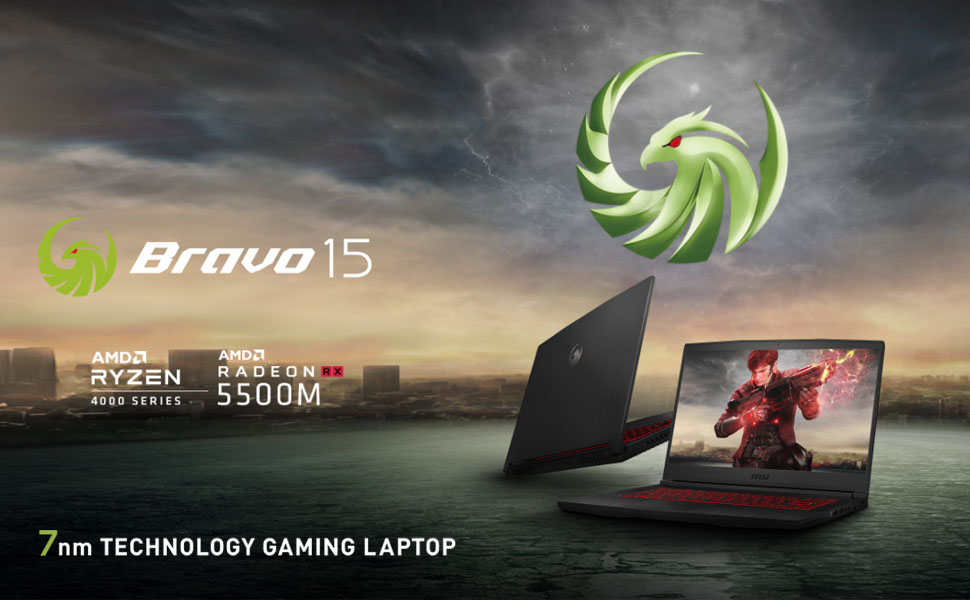
The Bravo 15 from MSI is designed for gamers who favor AMD’s ecosystem. This laptop’s Ryzen 7 5800H processor and Radeon RX 6500M GPU provide good performance for multitasking and gaming.
Key Specifications:
Processor: AMD Ryzen 7-4800H
Graphics: AMD Radeon RX5500M/4GB GDDR6
Display: 15.6-inch Full HD (1920×1080), 144Hz IPS panel
Memory: 16GB DDR4 RAM
Storage: 512GB SSD
Operating System: Windows 11 Home
Performance Overview:
With its outstanding multi-core performance, the Ryzen 7-4800H is a good choice for streaming, gaming, and content production. Games like Doom Eternal, Metro Exodus, and Far Cry 6 run at medium to high settings on the RX RX5500M/4GB GPU.
Performance stability is maintained by MSI’s cooling system, which efficiently dissipates heat, and the 144Hz display guarantees fluid gameplay. Both professionals and gamers will find the laptop’s elegant and robust design appealing.
Why Choose MSI Bravo 15:
Sturdy Build Quality: MSI’s standing guarantees longevity and durability.
AMD-Centric Build: Perfect for people who like AMD hardware.
Excellent Multi-Core Performance: Ideal for content creation and multitasking.
High Refresh Rate Display: Improves responsiveness and gaming graphics.
Final Thoughts
The best gaming laptop under ₹1 Lakh in 2025 will depend on personal preferences and needs. The ASUS TUF Gaming A15 is a notable option for individuals looking for the newest GPU technology. The Lenovo LOQ 2024 and HP Victus 15 are great options if you want a balanced performance.
Because each of these laptops offers a different combination of performance, features, and affordability, gamers are sure to find a device that fits both their financial goals and their gaming preferences.
Conclusion
In order to purchase the best gaming laptop in India for about ₹1 Lakh, take into account not just the features that are currently available but also your gaming preferences, usage habits, and future upgrades. There are plenty of options on the market in 2025, including powerful processors, powerful GPUs, and high-refresh displays.
Think of a gaming laptop as an investment for the future. Pay attention to upgradeability, build, and thermal performance. Always keep an eye out for deals because seasonal discounts and sales affect prices.
There is the ideal computer for you if you enjoy eSports, explore open worlds, or are a hybrid user who plays and creates.
FAQs
Can I upgrade the GPU?
No, GPUs are soldered and not upgradeable in laptops.
Are these good for editing and 3D work?
Yes, especially those with RTX 3050 or better.
What games can I run?
Almost all modern titles at medium to high settings.
Should I wait for newer models?
Only if you can wait a few months for the next generation.
Best brand for service?
HP and ASUS have strong service networks in India.
Please don’t forget to leave a review.
Let’s Connect
If you enjoy AI-powered creative workflows and product marketing ideas, I share more content like this on:
Here’s how I made ads for high-end lipstick without a studio, a team, or a design degree. AI only.
Have you ever stared at a beauty ad and thought, “How do they make it look so powerful?” The lighting is perfect. The product position is sensual and captivating. The balance of the text is just right.
I used to think those pictures needed a studio, a director, and someone who was really good at Photoshop.
Attention is key, whether you’re selling lipstick, perfume, or a handcrafted ceramic mug.
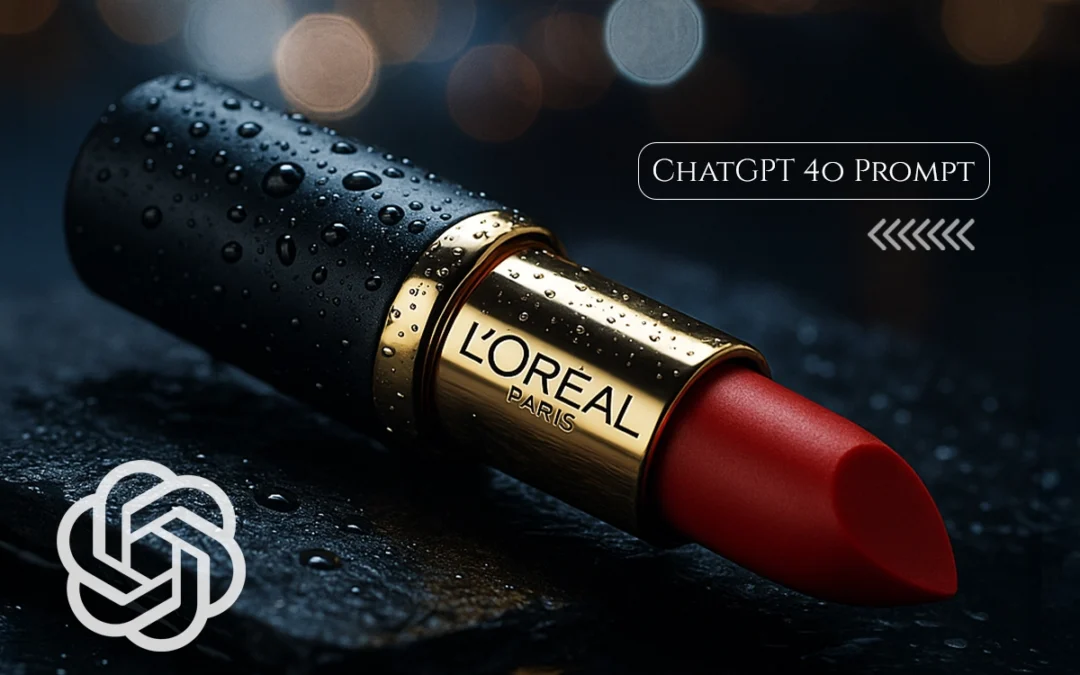
I learned that you don’t have to be a designer or a marketer to make a product ad that appears like it originated from L’Oréal’s creative boardroom with ChatGPT-4o.
All you need is the appropriate prompt.
L’Oréal Lipstick: The Perfect AI Prompt Subject
L’Oréal’s branding combines:
Luxury & accessibility
Visual drama through macro beauty shots
Empowerment themes like “Bold is Beautiful”
These characteristics help shape creative prompts that ChatGPT can turn into visual scripts, captions, or campaign ideas.
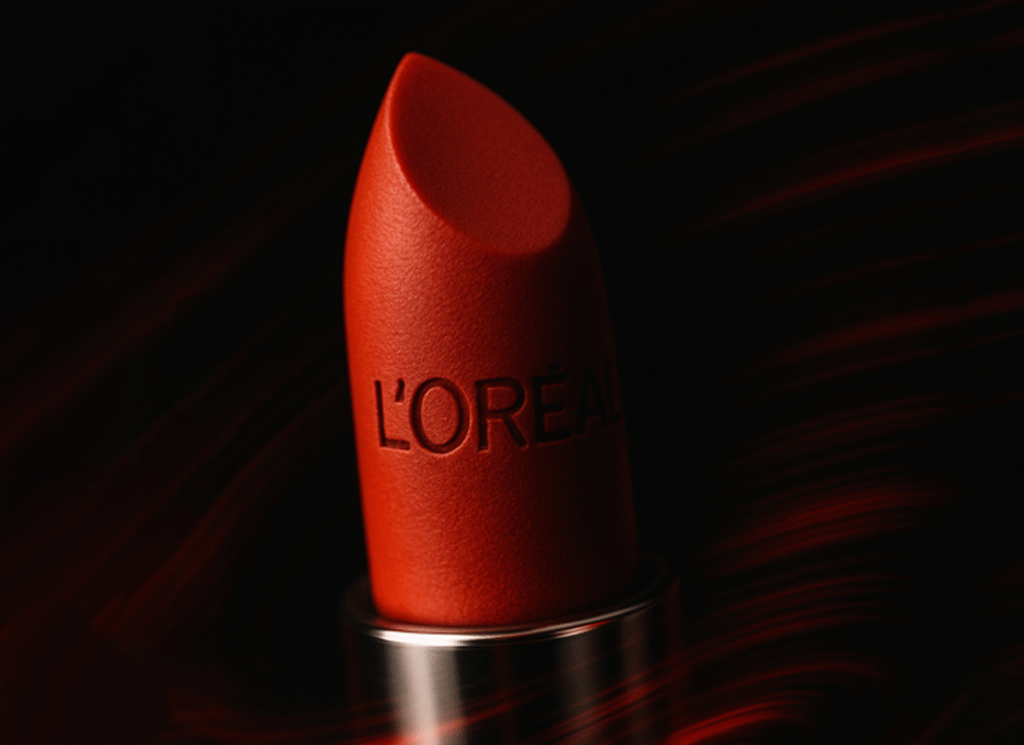
Prompt: ““An extreme close-up of the L’Oréal lipstick tip in sharp focus, while the background and chrome base spin in motion blur as if captured in a rotating lens effect. The L’Oréal emboss is crisp and matte, surrounded by red streaks of dynamic light trails in the black void. Camera: 100mm macro, f/4, handheld feel with spin motion blur Style: dramatic, intense, focused energy”“
Clean. Confident. Scroll-stopping.
Note: More ChatGPT prompts with visuals at end of the article
Why This Works
Here’s why ChatGPT-4o is so good for advertising products:
It knows how to read brand tone (L’Oréal = luxury and confidence) It gives you organized stuff, such ad copy, a scenario breakdown, and a tagline. It helps you see things in your mind, even if you don’t usually do it. This means you can make:
Ad headlines Instagram captions and visual hints for shoots or AI art Descriptions of products Even scripts for whole videos
Steal These 3 Prompts and Try Them Yourself
🎯 For Instagram Ad:
“Create a caption for a luxury lipstick close-up. Theme: bold elegance. Mood: cinematic. Keep it under 15 words.“
🎯 For Reels Script:
“Describe L’Oréal lipstick in 2 lines — focus on confidence and premium texture.“
🎯 For Product Page Copy:
“Write a 15-second script for an Instagram reel showcasing red lipstick with a slow-motion swipe and a powerful voiceover..“
7. Tools to Pair with ChatGPT
To turn prompts into assets, combine with:
Midjourney / DALL·E → for AI image generation
Canva / Photoshop → for final design
Copy.ai or Jasper → for variations of ad copy
ChatGPT Prompts for L’Oréal Lipstick Ad
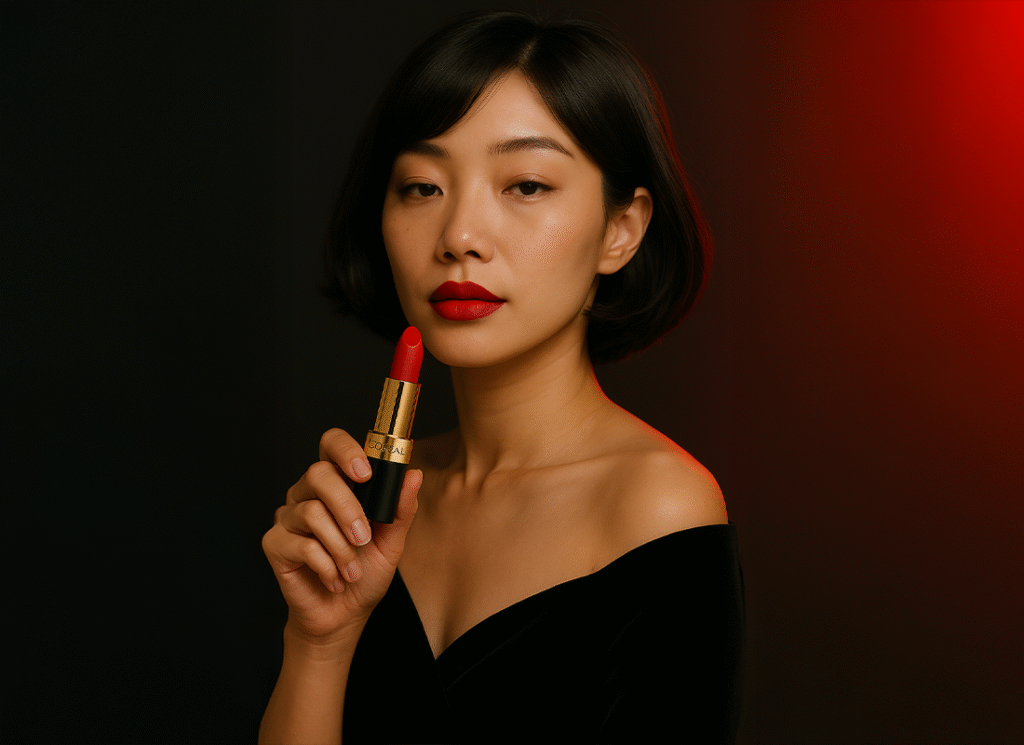
“A cinematic close-up portrait of a Japanese woman with a soft bob haircut and elegant expression, matching the reference model’s face. She wears a black velvet off-shoulder long-sleeve dress. Her hand gently holds a Rouge L’Oréal Lipstick near her jawline, positioned diagonally beside her face. The lipstick is proportionally accurate, showing a matte red tip, embossed L’Oréal logo, and chrome CD ring. Her gaze is calm and angled slightly downward. The background is a smooth gradient from black to deep red, with cinematic soft shadows. Camera: 85mm lens, f/2.5, side close-up angle Lighting: soft frontal key + red back rim”
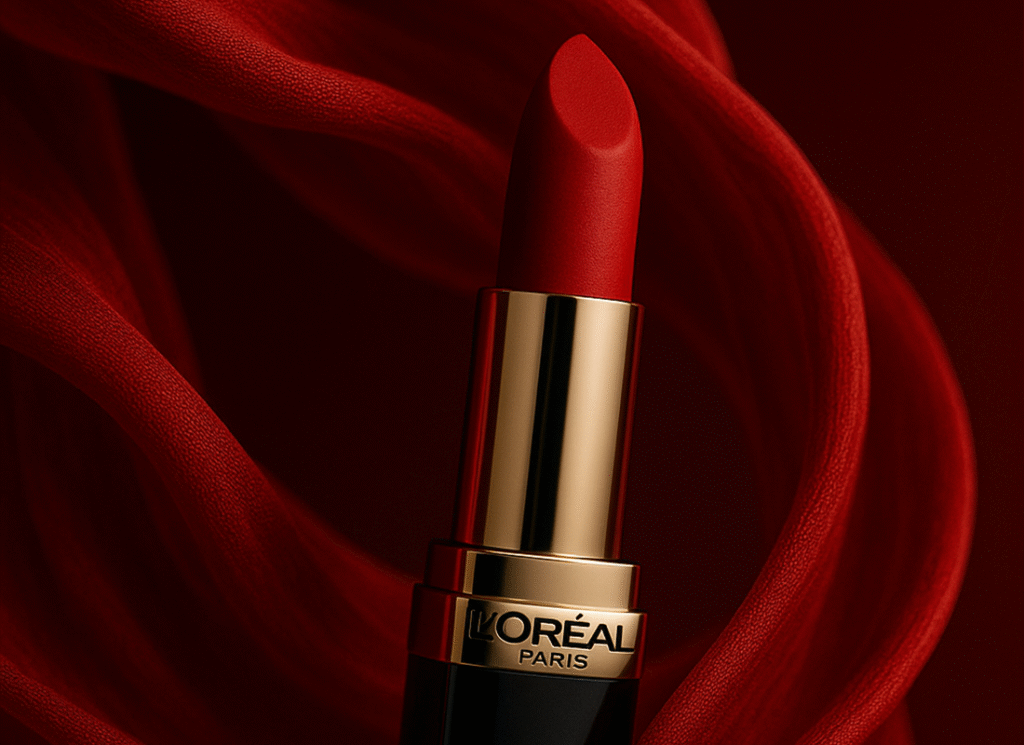
“Red silk fabric flows around a hovering L’Oréal lipstick in an elegant spiral. Soft backlight catches the folds of the fabric while the chrome base reflects red tones. Camera: 35mm lens, f/2.2, dynamic side angle”
“A L’Oréal Paris red lipstick stands upright inside a delicate, shattered rose made of translucent glass petals. Sharp shards float mid-air around the base, catching glints of light. The lipstick has a luxurious black and gold casing with the L’Oréal Paris logo clearly visible. Background is matte black with subtle glitter particles. Lighting is dramatic — focused top spotlight with soft reflections on glass and lipstick, evoking premium elegance and fragility.”
“A L’Oréal Paris red lipstick floats mid-air in a surreal, dreamlike space. Around it, deep red rose petals and golden shimmer particles drift slowly, suspended in motion. The background is a smooth gradient from crimson to violet. A soft halo glow surrounds the lipstick, and rim lighting subtly illuminates the tube edges, creating a magical, romantic, futuristic feel.”
“A L’Oréal Paris red lipstick stands vertically on a white marble vanity with faint gray veins. Behind it, a tilted vanity mirror reflects the lipstick and a blurred close-up of a woman’s lips mid-application. The background includes a softly lit classic dressing table setup with warm natural lighting. Gentle sunlight streams through the mirror area, and the gold band on the lipstick catches the light softly.”
“A bold red L’Oréal lipstick lies at the end of a dynamic lipstick stroke drawn across a smooth, cream-gold silk fabric. The matte swipe is thick and slightly textured, curving powerfully across the luxurious folds. The lipstick rests partially over the stroke, angled slightly, with gold accents catching warm side lighting. The background is rich silk texture with soft shadows and an under-silk glow for dimension.“
How to Structure a Winning Prompt for Any Product
Element
What to Specify
Example (L’Oréal)
Product
Name, form, material
L’Oréal red lipstick with gold casing
Style/Mood
Bold, dreamy, premium, etc.
Bold + luxurious
Camera/Visual Details
Angle, focus, motion
45° angle, macro lens, red light arcs
Brand Essence
Slogan, emotion
“Because You’re Worth It”, empowerment
Final Thoughts
Tools don’t hold us back anymore; how we ask does.
I learned that the secret isn’t in being a copywriter or a designer with ChatGPT-4o. It’s all about conquering the prompt.
This is your creative edge, whether you’re establishing your brand or just trying things out.
Give it a go. Prompt it. Put it up.
FAQ: ChatGPT Prompt for Product Advertisement
How do I make my product prompt more specific?
Use brand details, emotional tone, lighting, and camera angles.
Can I use these prompts for other products?
Yes—adapt the tone, angle, and emotion for each product category.
Is this useful for small brands too?
Absolutely. AI prompts level the playing field by giving small brands access to big-brand style assets.
Let’s Connect
If you enjoy AI-powered creative workflows and product marketing ideas, I share more content like this on:
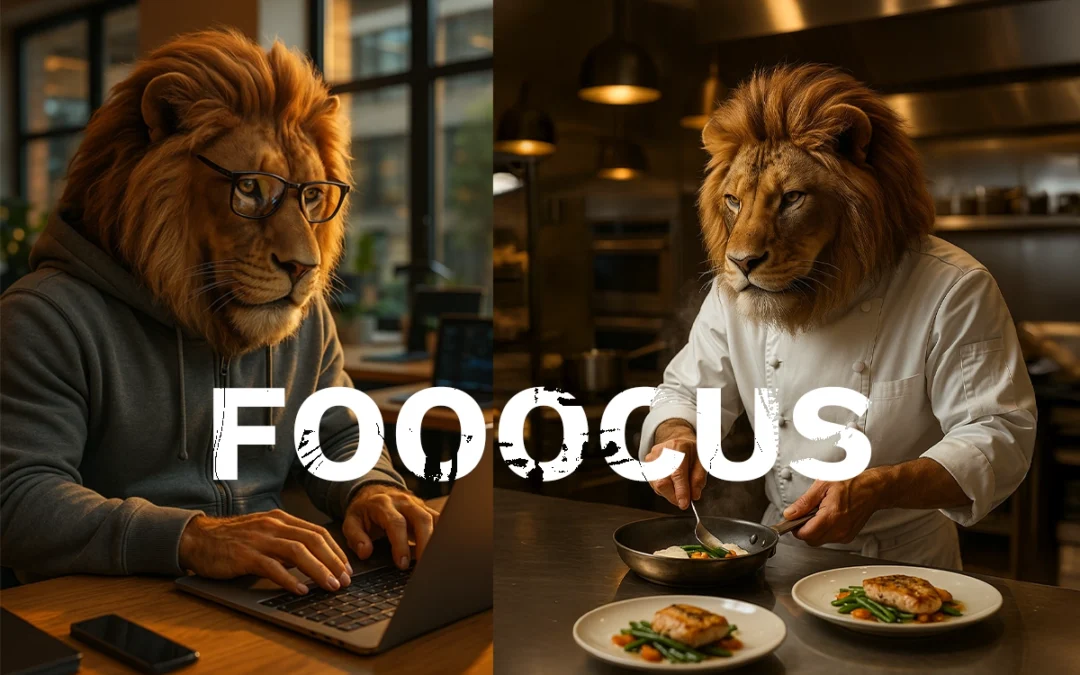
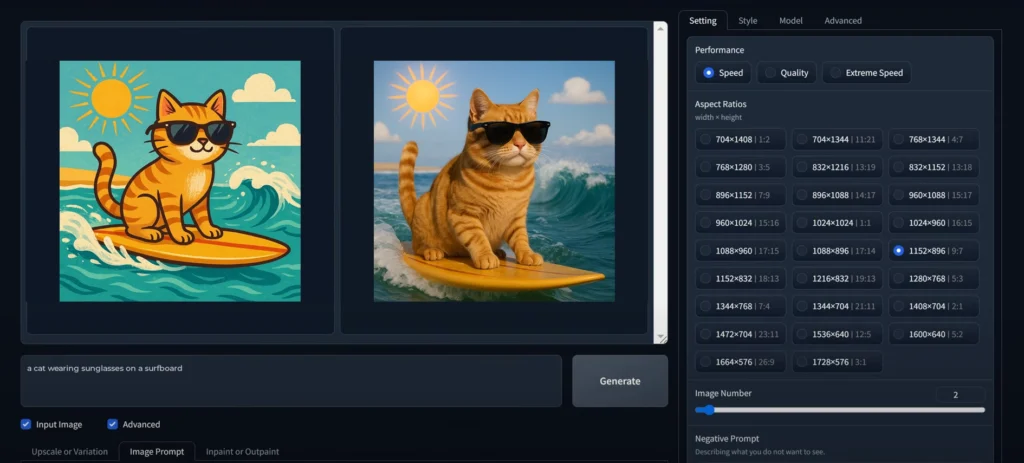
Imagine typing something like “a cat wearing sunglasses on a surfboard,” and a few seconds later, bam, it’s there. That’s Fooocus for you. Wild, right?
This little app is like having your own personal art wizard. It takes whatever you can dream up and turns it into an image, using AI behind the scenes.
It’s sort of like Stable Diffusion’s chill cousin. Less technical fuss, more “let’s make cool stuff.” Whether you’re just doodling for fun or need visuals for your next project, Fooocus steps in like, “Don’t worry, I got this.”
Why is Fooocus gaining popularity?
Things get interesting from here on out. It’s not just another tool; Fooocus is a quiet change in the world of AI art. What makes it unique? Incredibly easy. You download it, unzip it, and run it, and then you’re making art. There are no cloud logins, accounts, or payments. It’s yours, to keep on your own computer.
It stands out, which is why creators love it. It doesn’t have any filler. A simple process that works for everyone, even if they aren’t very tech-savvy. How about those who really use it? With your own tools, you can add your own models, change the speed settings, or even change the backend.
System Requirements for Running Fooocus
Minimum System Requirements
Before you go rushing to download it, hold up—your machine’s got to meet a few minimums. You don’t need a NASA computer, but Fooocus does need a bit of muscle to run properly, especially if you want your images fast and sharp.
Here’s what you barely need to get started:
OS: Windows 10 or 11 (64-bit)
CPU: Intel Core i5 (or AMD equivalent)
RAM: At least 8GB (bare minimum)
GPU: NVIDIA with at least 4GB VRAM (seriously important)
Storage: 10GB free (you’ll want more later)
That last one—your GPU—is the deal-breaker. If you don’t have a CUDA-compatible NVIDIA card, you can run Fooocus on your CPU, but it’s gonna crawl. Like, “go-make-a-coffee-and-come-back” slow.
Recommended System Specifications
Now, if you actually want to enjoy using Fooocus (and trust me, you do), here’s what I’d recommend:
CPU: Intel i7 or Ryzen 7 (the faster, the better)
RAM: 16GB or more (32GB is a sweet spot)
GPU: RTX 3060 or better (with 8GB VRAM minimum)
Storage: SSD, because waiting is boring
With this setup, images will render in seconds, not minutes. You can crank up the resolution, generate batches, and still have resources left to run your music player or dozens of browser tabs.
Operating System
GPU
Minimal GPU Memory
Minimal System Memory
System Swap
Note
Windows/Linux
Nvidia RTX 4XXX
4GB
8GB
Required
fastest
Windows/Linux
Nvidia RTX 3XXX
4GB
8GB
Required
usually faster than RTX 2XXX
Windows/Linux
Nvidia RTX 2XXX
4GB
8GB
Required
usually faster than GTX 1XXX
Windows/Linux
Nvidia GTX 1XXX
8GB (* 6GB uncertain)
8GB
Required
only marginally faster than CPU
Windows/Linux
Nvidia GTX 9XX
8GB
8GB
Required
faster or slower than CPU
Windows/Linux
Nvidia GTX < 9XX
Not supported
/
/
/
Windows
AMD GPU
8GB (updated 2023 Dec 30)
8GB
Required
via DirectML (* ROCm is on hold), about 3x slower than Nvidia RTX 3XXX
Linux
AMD GPU
8GB
8GB
Required
via ROCm, about 1.5x slower than Nvidia RTX 3XXX
Mac
M1/M2 MPS
Shared
Shared
Shared
about 9x slower than Nvidia RTX 3XXX
Windows/Linux/Mac
only use CPU
0GB
32GB
Required
about 17x slower than Nvidia RTX 3XXX
How to Download Fooocus
Step-by-Step Guide to Downloading Fooocus
Here’s how to do it the right way:
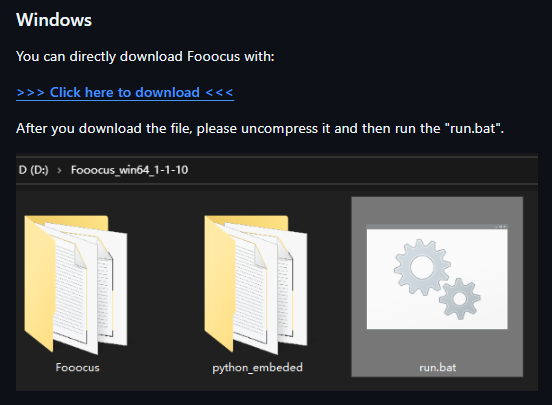
Head over to GitHub. Just search “Fooocus GitHub” and click the official repo. Or Click here ⬅️
Tip: Bookmark the GitHub page. New updates drop all the time.
Extracting the Fooocus Files
Step-by-Step Guide to Extraction Process
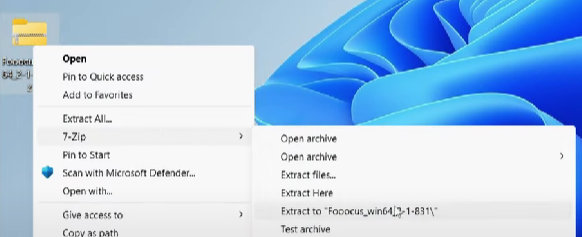
Right-click the ZIP file.
Select “Extract to Fooocus\” or similar.
Let it finish. It might take a few seconds depending on your drive speed.
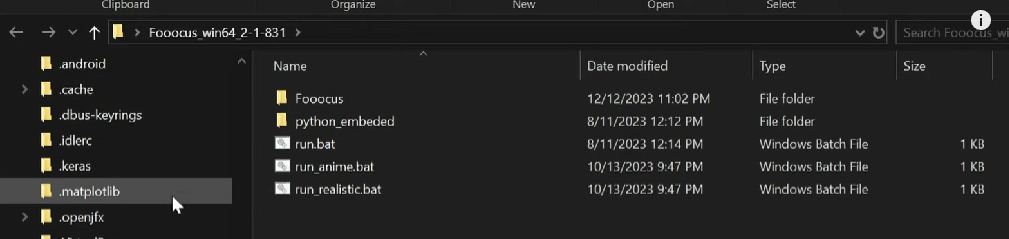
Inside the folder, you’ll see something like run.bat, env, and a few model folders.
Don’t move stuff around unless you know what you’re doing. Fooocus expects certain files to be where they are.
Running Fooocus for the First Time
Running the Executable File
Alright, ready to roll? Here’s how:
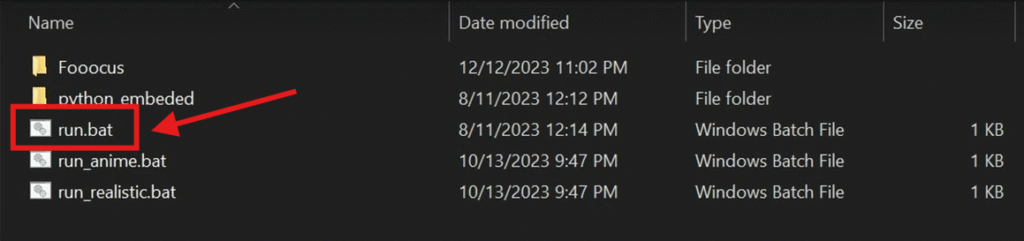
Double-click run.bat.
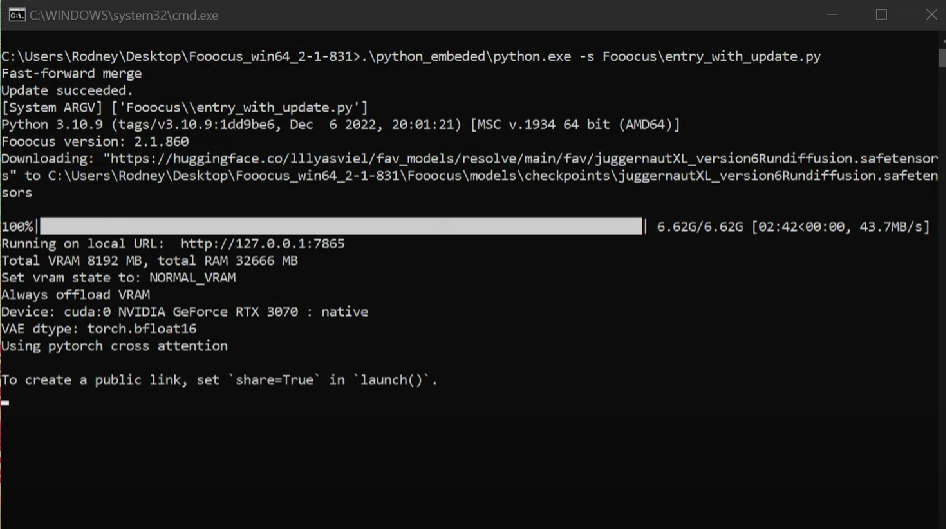
A black terminal window will pop up. Let it do its thing.
After a few seconds, your browser should open up with the Fooocus interface.
If it doesn’t, copy the link from the terminal (usually 127.0.0.1:5000) and paste it manually.
Congrats—you’re in.
Initial Configuration Settings
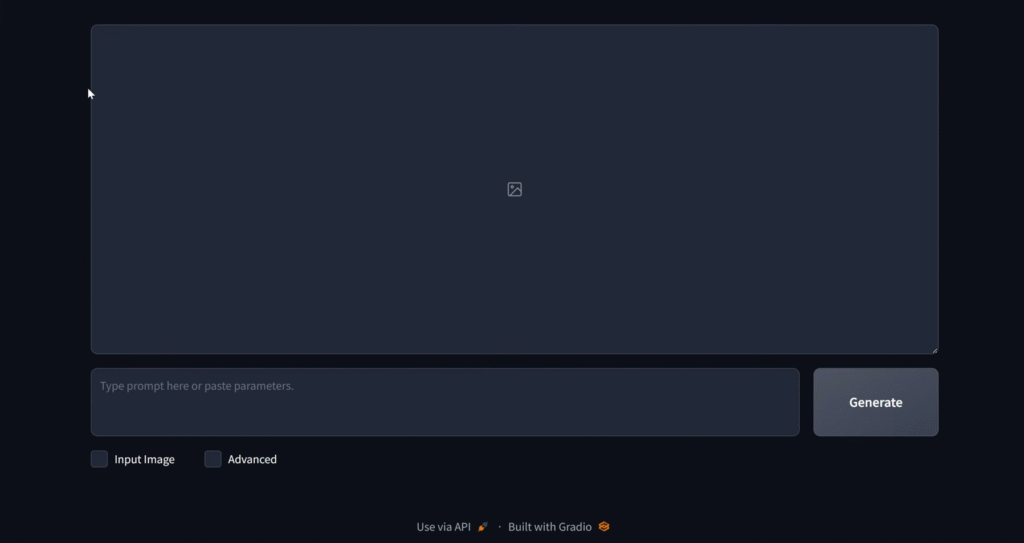
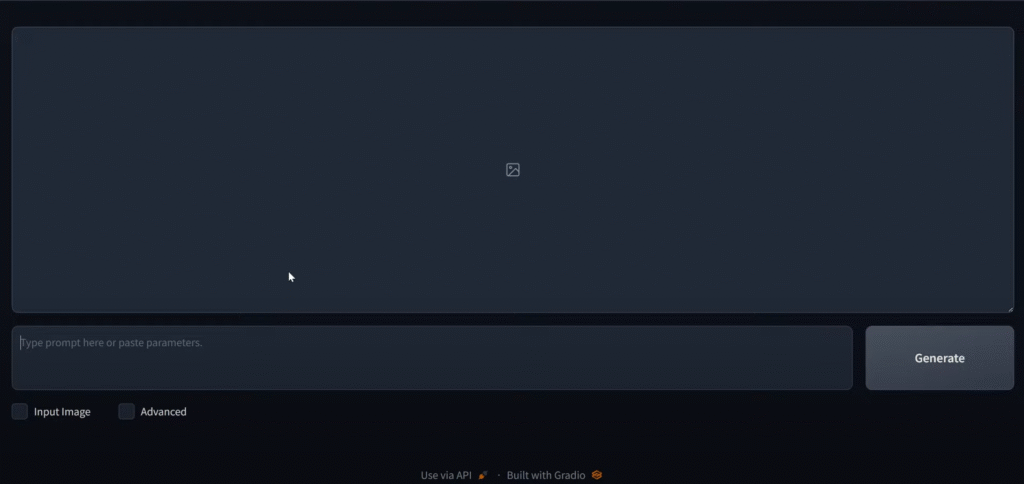
When Fooocus loads up in your browser, you’ll see a clean interface with a few buttons, some sliders, and a big box to type your prompt.
Before you dive in, here’s a few things worth tweaking:
Output Folder: Decide where your images should go. I like keeping it somewhere like D:\Fooocus_Images for easy access.
Resolution Settings: Start small (like 512×512) if you’re testing, and go bigger later.
Model Selection: Stick with the default at first. Once you’re comfortable, you can try custom models.
Now, you’re ready to generate your first image. Type something into the prompt box—anything. “A cat wearing armor in a cyberpunk city.”
Click Generate… and watch the magic happen.
Troubleshooting Common Installation Issues
Stuff Happens—Here’s How to Deal
Look, even though Fooocus is one of the easiest AI tools to set up, sometimes things still go sideways. Maybe it throws an error. Maybe nothing happens. Maybe your PC gives you a death stare and acts like it’s never heard of Python before. Don’t panic—we’ve all been there.
Let’s walk through some of the most common “oh no” moments and how to fix them without flipping your desk.
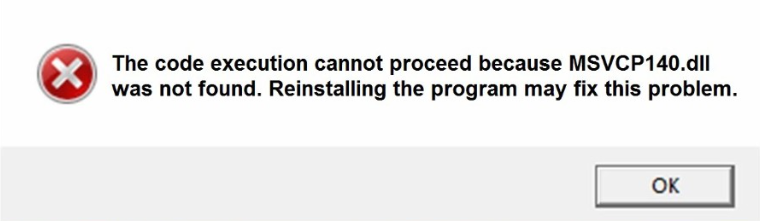
“Missing DLL” Errors (a classic)
You double-click run.bat, and BOOM—you get hit with a message like:
“The code execution cannot proceed because MSVCP140.dll was not found.”
Awesome. Not.
This usually means your system’s missing some basic Windows components that Fooocus (or more accurately, Python) needs to do its thing. The fix is super simple:
Here’s what to do:
Go to Google and search: “Microsoft Visual C++ Redistributable 2015–2022”
Download it directly from Microsoft (not from weird download sites).
Install both the x64 and x86 versions.
Restart your PC.
That usually clears up 90% of these errors.
“CUDA not found” or “No GPU detected”
Ah yes, the GPU problem. Fooocus loves a good NVIDIA card with CUDA support. But if it can’t find yours, here’s what might be going on:
You don’t have an NVIDIA GPU. (Yeah, that’s kind of required for GPU acceleration.)
You haven’t installed CUDA or cuDNN properly.
Your GPU drivers are outdated.
The fix:
Update your NVIDIA drivers from the official website.
Install the latest CUDA Toolkit (compatible with your version of PyTorch).
Make sure PyTorch was installed with CUDA support—check their site for the right command.
If none of that works, you can still run Fooocus in CPU mode. It’s way slower, but hey—it works.
First Look: The Dashboard
Alright, you made it through setup. Now you’re staring at the Fooocus interface in your browser.
Let’s break it down.
The Fooocus dashboard is simple—like, refreshingly simple. No walls of buttons, no confusing tabs, no “pro mode” switch you’re scared to touch.
Here’s what you’ll typically see:
Prompt Box – This is the magic zone. Type your idea here, and Fooocus turns it into an image.
Generate Button – Big, obvious, and satisfying to click.
Preview Panel – Your image appears here once it’s ready.
Settings Panel – Sliders and options for resolution, steps, guidance scale, etc.
History Section – Tracks what you’ve made. Super handy if you forget what prompt gave you that one cool result.
And honestly, that’s all you need. You don’t need a course or a manual. Just start typing, hit generate, and play.
Menus and Panels—What’s What
Fooocus keeps everything tidy. There’s not much menu-hopping, but here’s what you should know:
Models Tab: Want to switch from photorealism to something anime-style? This is where you load different AI models. You’ll find built-in options and maybe a way to load your own if you’re fancy.
Styles & Filters: Pre-set styles you can slap onto your prompts—think of them like Instagram filters, but smarter.
Settings (Gear Icon): This is where you pick folders, change the app theme, toggle GPU settings, etc. Go here if anything seems weird or if you want to fine-tune stuff.
Output Area: Your creations land here. Each image usually includes its metadata—super helpful if you want to recreate or tweak later.
It’s honestly one of the cleanest UIs out there. It feels like the devs actually use it themselves—because everything is where it should be.
Make It Yours: Customizing the Layout
We have the option of Dark mode? Done, bigger image previews also,
Here’s what I’d suggest tweaking right away:
Dark Mode – Find it in settings.
Output Size Defaults – Set something like 768×768 or 1024×1024 depending on your GPU power.
Prompt Templates – You can pre-fill prompts with certain structures. Super useful if you’re experimenting with different art styles or need consistency.
Everything auto-saves too, so once it’s dialed in, you’re golden.
First Project with Fooocus
Let’s Make Something!
You’ve waited long enough—it’s time to make your first image.
Here’s the no-pressure, 3-step process:
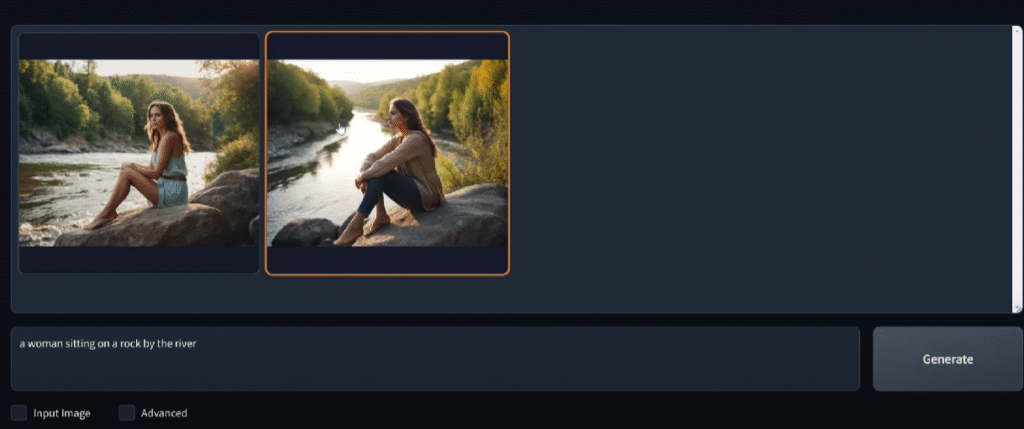
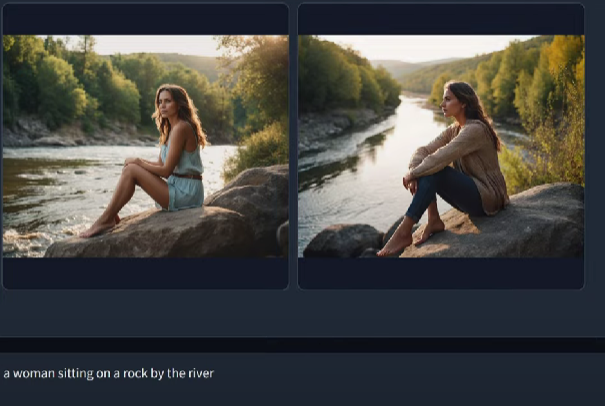
Type your idea into the box. Try something like:
“a woman sitting on a rock by the river”
Check your settings. Start with default resolution, maybe 30-50 steps, and leave everything else as-is.
Click ‘Generate.’ Sit back and let Fooocus work its AI magic.
It’ll take a few seconds (or more, depending on your setup).
Using Styles, Filters, and Models
Want to level up that image? Try this:
Pick a style preset—like “Studio Photography” or “Digital Painting.”
Tweak the guidance scale—lower numbers = more freedom, higher = stricter prompt control.
Switch the model—some models specialize in photorealism, others in anime, sketch, fantasy, etc.
Play around. This is your sandbox.
And don’t stress if your first few images are weird or don’t look right. AI art is as much about exploration as it is about results.
Keyboard Shortcuts
Ctrl + Enter – Generate image (way faster than clicking)
Ctrl + S – Save current image
Ctrl + Z – Undo last generation
Ctrl + Shift + E – Export all
You can even remap some of them if you’re picky like me. Check the config files or settings menu.
Alternatives to Fooocus (If You Wanna Shop Around)
Other AI Tools Worth Checking Out
Fooocus is awesome—but maybe you’re curious about what else is out there. Here are a few top-tier alternatives:
Tool
Pros
Cons
Stable Diffusion
Fully customizable, endless models
More setup required, not beginner-friendly
MidJourney
Beautiful artistic outputs
Requires subscription, no offline use
DALL·E 3
Super intuitive, natural prompts
Limited customization, smaller res
RunwayML
Great for video + AI workflows
Can get pricey, internet required
Why Fooocus Might Still Be the One
Even with all those fancy options, Fooocus still holds its own because:
It’s offline and free
No install headaches
Constantly improving
And it’s just fun to use
But hey, there’s no rule that says you can’t use more than one tool. Lots of creators bounce between Fooocus for drafts, MidJourney for mood, and Photoshop for final polish.
That’s no small thing. Whether you’re here to experiment, build a portfolio, make memes, or just play around—Fooocus gives you the tools to do all that and more.
So open it up. Type in something wild. Make something only you could imagine. And if you love it? Share it. Help someone else find their groove.
Creativity’s contagious like that.
FAQs
What platforms does Fooocus support?
Right now, Fooocus is made for Windows (10/11). It can run on Linux with some tweaks, but Mac support is limited because of missing GPU compatibility.
Is Fooocus completely free?
Yeah, it’s totally free. Like, no “free trial” traps or annoying watermarks slapped across your art. You download it, set it up, and that’s it—no catch, no weird upsell later.
Can I use Fooocus offline?
Absolutely. Once you’ve downloaded the models and dependencies, Fooocus runs entirely offline. Great for privacy and working on the go.
My images take forever—why?
It’s probably running in CPU mode. Make sure you’ve got an NVIDIA GPU with CUDA and that PyTorch is set up to use it.
Where can I get more models?
The community has tons! Reddit, Discord, CivitAI, HuggingFace—all great places to grab new styles and specialized AI models.
Please don’t forget to leave a review. Explore more by joining me on BuyMeACoffee
ChatGPT-4o image generation is opening up a new world of creative possibilities. Whether you’re into anime art, real estate marketing, or comic creation, this new capability from OpenAI is making it easier than ever to generate stunning visuals with just a few words.
In This Post
Ghibli-Style Characters Come to Life
You know those soft, expressive characters you see in Studio Ghibli films? This tool can recreate that kind of feel. It’s not flawless, but the portraits it generates do have that hand-drawn, storybook vibe. Honestly, it’s pretty impressive what a few words and good lighting prompts can do.
Prompt : Create imageColorize the blank anime Line art artwork, rendered at 1200 x 627 resolution.
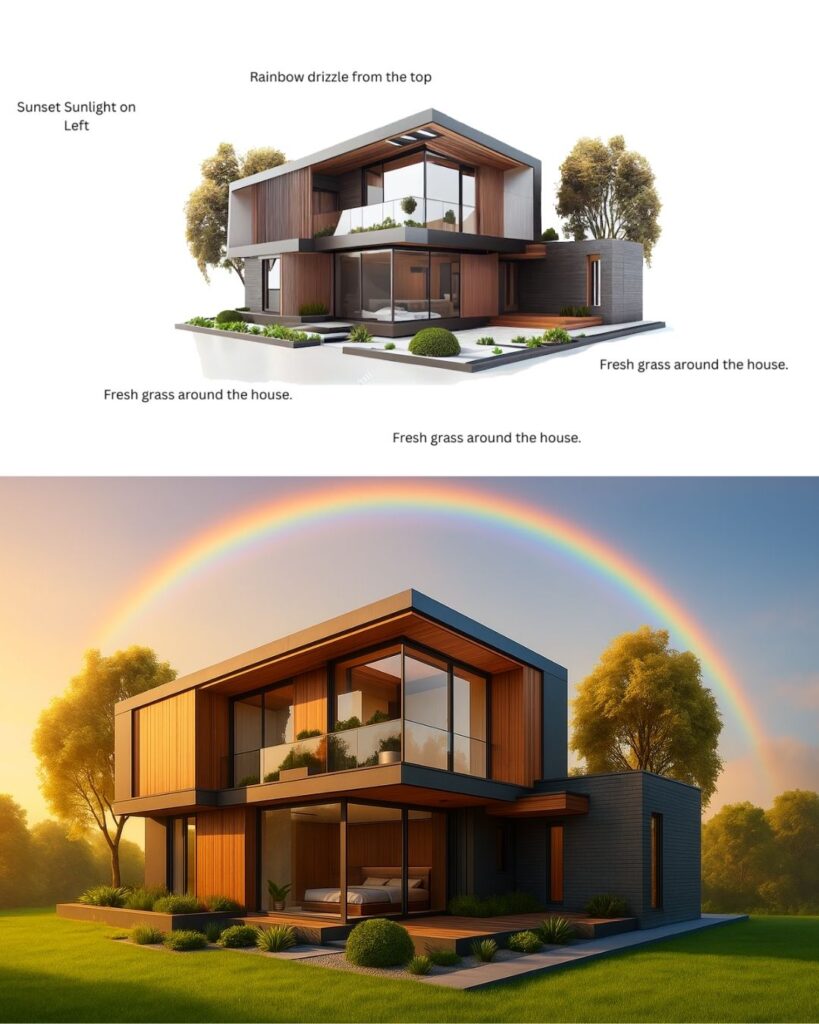
Hyper-Realistic Real Estate Renders
This one’s a game-changer for folks in real estate. With just a few inputs, you can get polished images of houses that look like they were snapped for a premium listing. Think cozy lighting, great angles, and even signage—all without needing an actual camera.
Prompt: Create image Edit the image according to the instructions in the image. 50% of new creativity is allowed. Generated in 1200 X 627 Size.
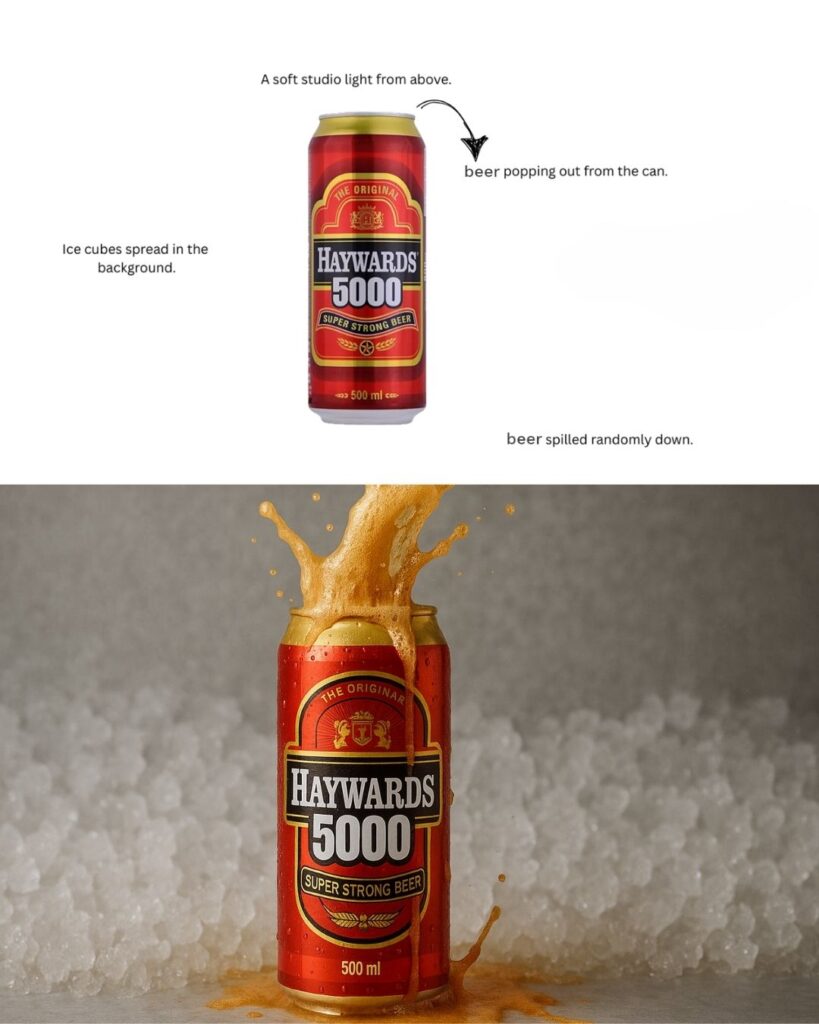
Product Visuals That Pop
Need a product shot but don’t have the budget or setup? This AI might be your shortcut. From the shine on a bottle to the lighting setup, the results look surprisingly ad-ready. It’s like having a mini design studio in your laptop.
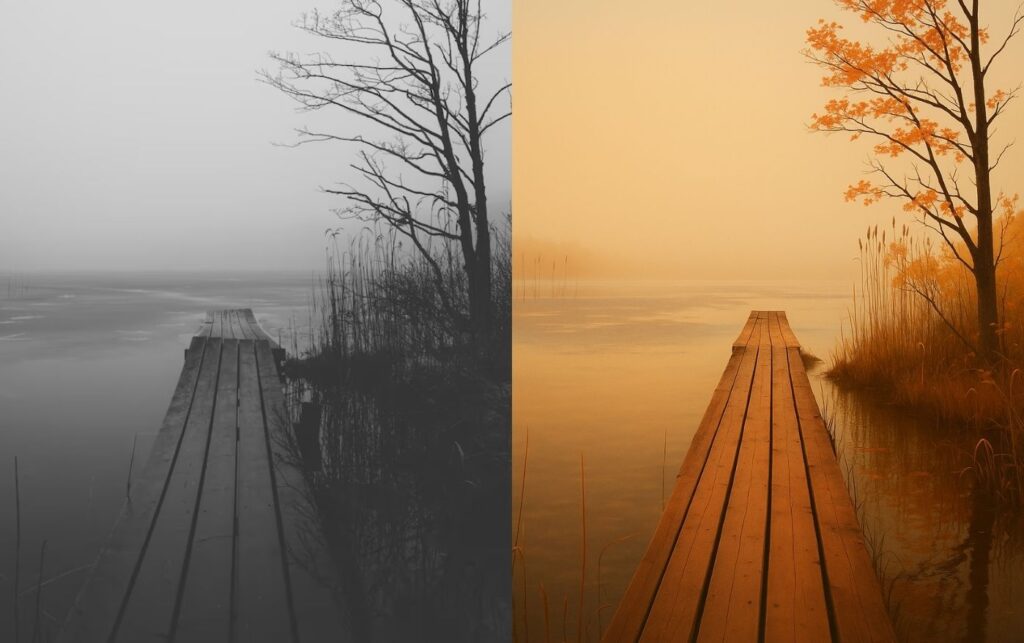
Nature Scenes with Heart
Whether it’s a foggy forest or a sunlit trail, the nature visuals coming out of this tool are impressive. The details feel painterly, almost like a digital postcard. Great for wellness campaigns, children’s books, or anywhere you want to set a calm, natural tone.
Prompt: Create image Colorize the image and rendered at 1200 x 627 resolution.
Infographics and Diagrams
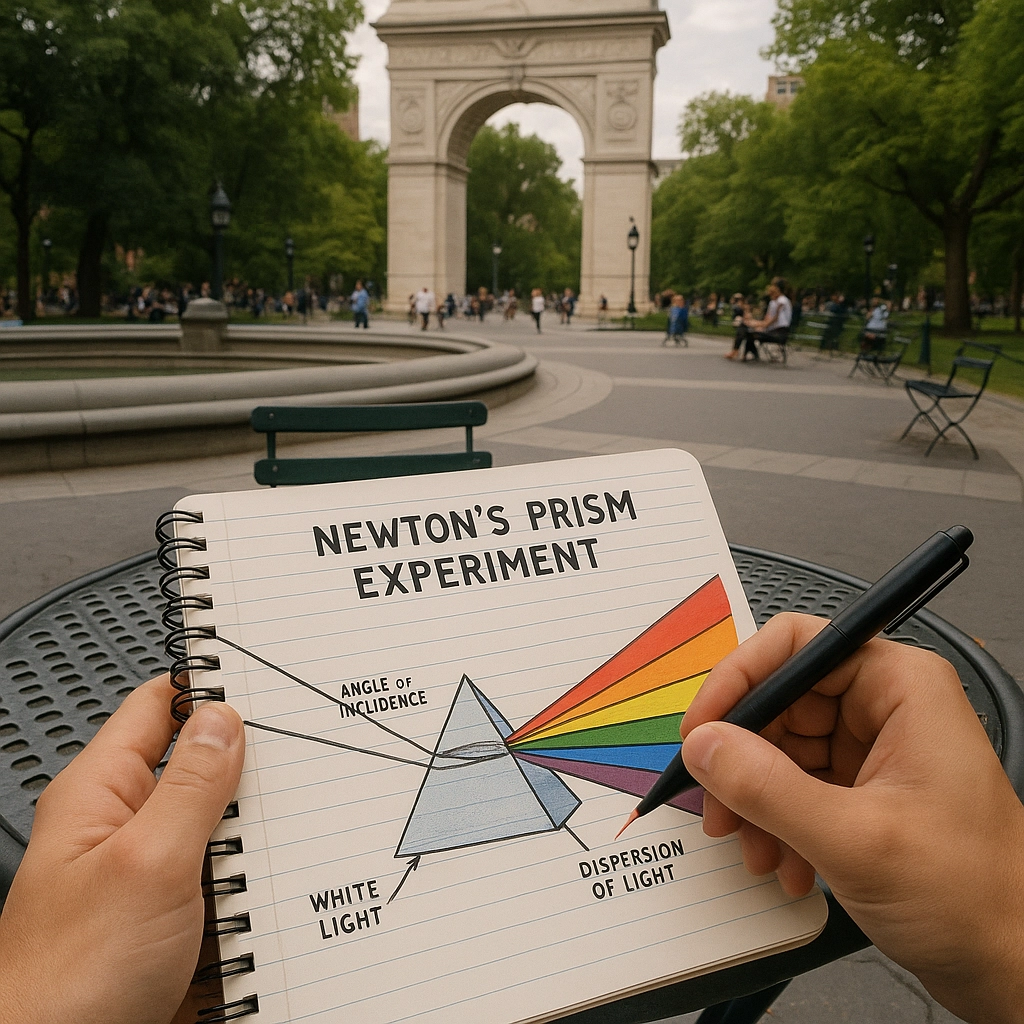
Got an idea you need to explain fast? This tool can whip up simple visuals like pyramid charts or step-by-step graphics. You don’t need to mess with PowerPoint—just describe what you want, and it builds something clean and easy to follow. Super useful for teachers, marketers, or anyone trying to get a point across quickly.
Create image an infographic explaining newton’s prism experiment in great detail
Infographic of newtons prism theoryInfographic of newtons prism theory ON NOTEBOOKnewtons teach prism theory
Create image now generate a POV of a person drawing this diagram in their notebook, at a round cafe table in washington square park
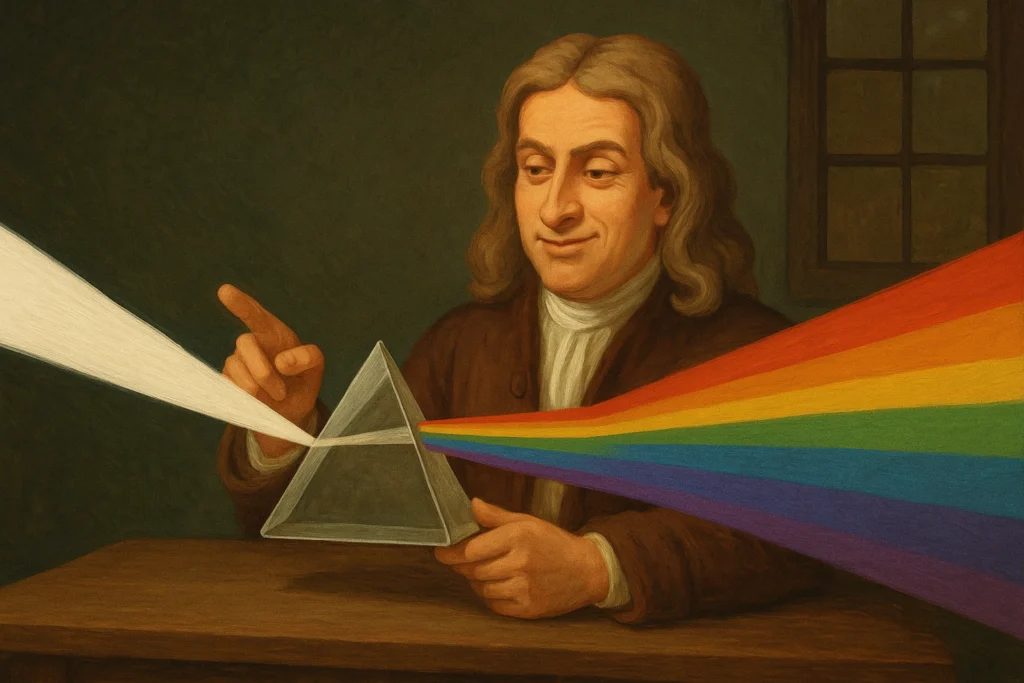
Create image now show the same scene with a smug young Isaac Newton sitting at the table, with a prism, demonstrating the experiment, without the notebook in view
Real-World Interfaces and AR-Like Scenes
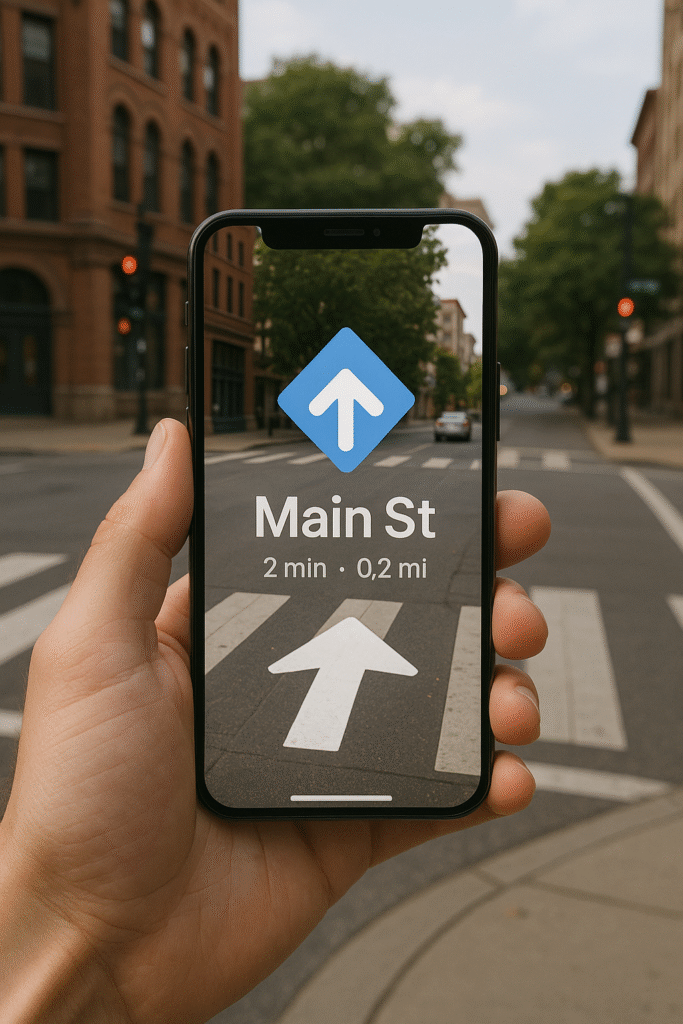
One of the coolest things I saw was a mockup of someone holding a phone over a real-world scene—like something out of an augmented reality demo. If you’re building an app or just want to show off how a UI works in the real world, this is a major shortcut.
Prompt: Create image A person holding a phone showing AR navigation over a real street scene, with a big white arrow and “Main St” on the screen, matching the crosswalk ahead.
Conclusion
Honestly, the stuff ChatGPT-4o image generation pulls off is wild. One moment it’s sketching anime-style portraits, and the next it’s pumping out real estate listings that look straight out of a brochure.
If you’re working on something creative—maybe you’re planning a comic, a product launch, or even teaching a class—this tool gives you a serious shortcut. No design background? Doesn’t matter. A good prompt is all you really need.
And hey, in a world that’s always rushing, having a tool that helps you keep up without sacrificing creativity? That’s a win.
Android 16 x Material 3 Expressive marks a significant milestone in Google’s mobile operating system, introducing a comprehensive redesign known as Material 3 Expressive. This new design language represents a bold step forward, aiming to create a more personalized, dynamic, and visually engaging user experience.
Material 3 Expressive builds upon the foundations laid by Material You, emphasizing adaptability and user-centric customization. The redesign focuses on vibrant color schemes, fluid animations, and intuitive interactions, reflecting Google’s commitment to evolving the Android ecosystem to meet modern user expectations.
The Evolution from Material You to Material 3 Expressive
Material You introduced the concept of dynamic theming, allowing users to personalize their devices based on wallpaper colors and preferences. Material 3 Expressive takes this concept further by incorporating more expressive elements, such as:
Enhanced Color Palettes: Offering a broader range of hues and tones for a more vibrant interface.
Advanced Animations: Introducing smoother transitions and motion effects that respond to user interactions.
Adaptive Components: Enabling UI elements to adjust seamlessly across different devices and screen sizes.
This evolution signifies Google’s dedication to creating a cohesive and emotionally resonant user interface that adapts to individual preferences and contexts.
Key Features of Material 3 Expressive
Vibrant Color Schemes and Dynamic Themes
Material 3 Expressive introduces an expanded set of color options, allowing for more expressive and personalized themes. Users can expect:
Dynamic Color Extraction: Automatically generating color palettes from wallpapers to theme the system UI and supported apps.
Customizable Accent Colors: Providing users with the ability to select specific accent colors for a more tailored experience.
Improved Contrast and Readability: Ensuring that text and icons remain legible across various backgrounds and themes.
These enhancements aim to create a more immersive and visually appealing interface that resonates with users’ personal styles.
Enhanced Animations and Motion Effects
The new design language emphasizes fluidity and responsiveness through:
Physics-Based Animations: Incorporating natural motion effects that mimic real-world physics for a more intuitive experience.
Interactive Transitions: Offering smoother transitions between apps and screens, enhancing the overall user flow.
Responsive Feedback: Providing immediate visual and haptic feedback to user interactions, improving engagement and satisfaction.
These animation improvements contribute to a more dynamic and engaging user experience, making interactions feel more natural and responsive.
Redesigned Quick Settings and Notification Shade
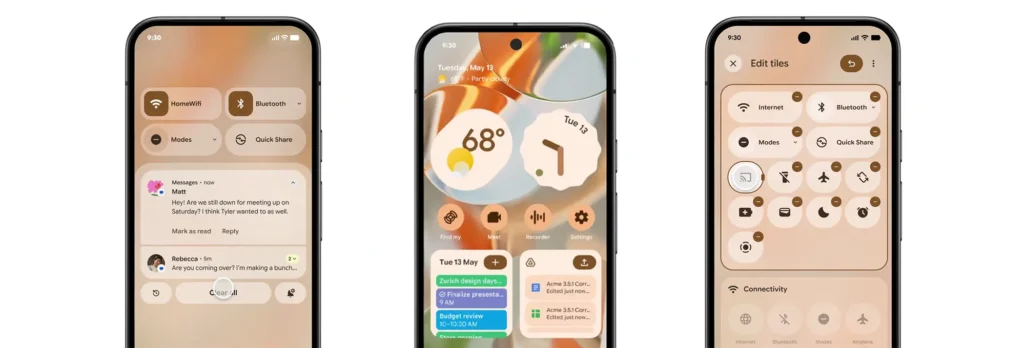
Material 3 Expressive revamps the Quick Settings panel and notification shade to enhance usability and aesthetics:
Modular Quick Settings: Allowing users to customize the layout and order of quick settings tiles for easier access to frequently used functions.
Blurred Backgrounds: Introducing translucent backgrounds that provide context while maintaining focus on foreground elements.
Grouped Notifications: Organizing notifications into categories for a cleaner and more manageable notification center.
These changes aim to streamline user interactions and provide a more organized and visually coherent interface.
Live Updates: Real-Time Information at a Glance
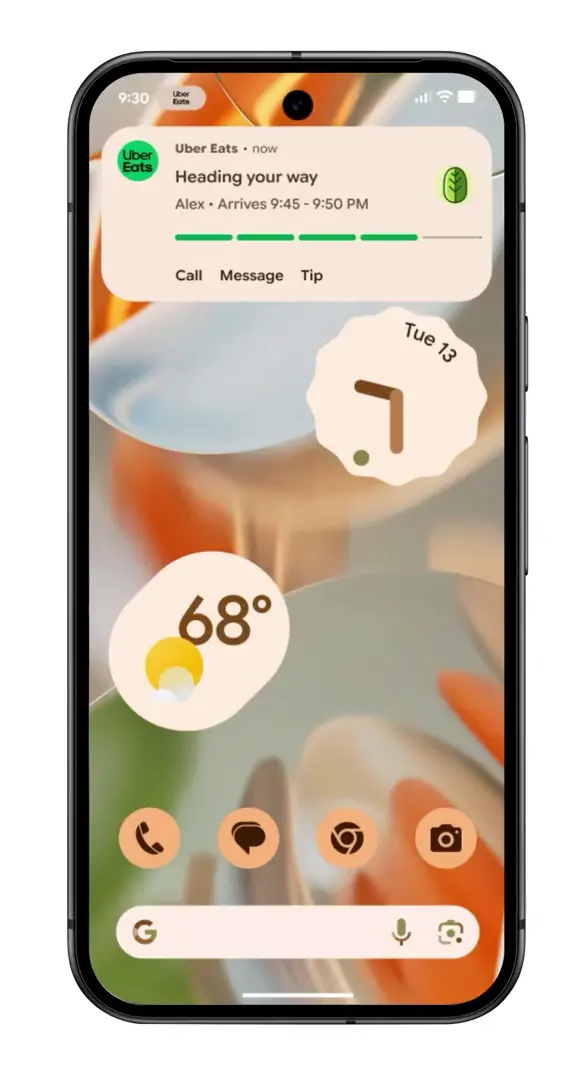
One of the standout features of Android 16 is the introduction of Live Updates, designed to keep users informed about ongoing activities directly from the lock screen and always-on display. Key aspects include:
Persistent Notifications: Displaying real-time updates for activities such as navigation, music playback, and ride-sharing services.
Interactive Elements: Allowing users to interact with live updates, such as pausing music or ending navigation, without unlocking the device.
Seamless Transitions: Ensuring that live updates transition smoothly between the lock screen, always-on display, and home screen.
This feature enhances convenience by providing timely information at a glance, reducing the need to unlock the device for routine tasks.
Comparison with Apple’s Dynamic Island
Live Updates draw comparisons to Apple’s Dynamic Island feature, which integrates real-time information into the iPhone’s notch area. However, Google’s implementation offers distinct advantages:
Wider Integration: Extending beyond a specific hardware area to utilize the entire lock screen and always-on display.
Greater Customization: Allowing users to tailor which activities and apps can display live updates.
Cross-Device Consistency: Ensuring a uniform experience across various Android devices, regardless of hardware differences.
By focusing on flexibility and user control, Live Updates aim to provide a more versatile and accessible real-time information system.
Personalization and Customization
Adaptive Icons and Widgets
Material 3 Expressive enhances personalization through adaptive icons and widgets:
Shape Shifting Icons: Allowing icons to adapt their shape based on user preferences and system themes.
Responsive Widgets: Enabling widgets to adjust their size and content dynamically to fit different screen sizes and orientations.
Consistent Aesthetics: Ensuring that icons and widgets maintain a cohesive look and feel across the system.
These features empower users to create a home screen layout that reflects their individual style and usage patterns.
User-Centric Design Philosophy
The overarching philosophy of Material 3 Expressive centers on user empowerment:
Inclusive Design: Prioritizing accessibility and usability for users of all abilities.
Contextual Adaptation: Adjusting UI elements based on user behavior and environmental factors.
Feedback-Driven Iteration: Incorporating user feedback to continuously refine and improve the design language.
By placing users at the heart of the design process, Google aims to create a more intuitive and satisfying user experience.
Developer Tools and Support
Jetpack Compose Enhancements
Developers can leverage Jetpack Compose to create applications that align with Material 3 Expressive:
Simplified UI Development: Utilizing declarative programming to build responsive and dynamic interfaces.
Theming Support: Easily implementing dynamic color theming and adaptive components.
Performance Optimization: Benefiting from improved performance and reduced boilerplate code.
Jetpack Compose streamlines the development process, enabling faster and more efficient creation of modern Android applications.
Flutter Integration and Support
Flutter, Google’s cross-platform UI toolkit, also supports Material 3 Expressive:
Unified Design Across Platforms: Allowing developers to create consistent experiences on Android, iOS, web, and desktop.
Customizable Widgets: Providing a rich set of widgets that adhere to Material 3 Expressive guidelines.
Community Resources: Accessing a wealth of documentation, tutorials, and community support for implementing the new design language.
Flutter’s integration ensures that developers can deliver cohesive and expressive applications across multiple platforms.
Impact on User Experience
Improved Accessibility and Usability
Material 3 Expressive introduces several enhancements to accessibility and usability:
Scalable Text and Icons: Supporting dynamic scaling to accommodate users with visual impairments.
High Contrast Modes: Offering themes with increased contrast for better readability.
Voice Interaction Improvements: Enhancing voice command capabilities for hands-free navigation.
These features aim to make Android more inclusive and user-friendly for a diverse range of users.
Feedback from Beta Testers
Early feedback from beta testers highlights positive reception:
Enhanced Visual Appeal: Users appreciate the vibrant colors and fluid animations.
Intuitive Navigation: The redesigned UI elements contribute to a more straightforward and enjoyable navigation experience.
Customization Options: Users value the increased ability to personalize their devices to match their preferences.
This feedback underscores the success of Material 3 Expressive in enhancing the overall user experience.
Rollout and Availability
Beta Release Timeline
Google plans to roll out Material 3 Expressive in phases:
Developer Previews: Initial releases for developers to test and adapt their applications.
Some Pixel phones will be the first to get the stable Android 16 update.
Android 16 is arriving in June
Material 3 Expressive on Wear OS 6
Unified Design Across Devices
Google’s Material 3 Expressive isn’t just limited to smartphones—its influence extends to Wear OS 6 as well, creating a unified design language that ties together Android phones, smartwatches, tablets, and even Android TV. This unified approach ensures a consistent user experience no matter the screen size or platform.
Wear OS 6 adopts the expressive color palettes, fluid animations, and modular UI components of Material 3, all optimized for smaller screens. For instance:
Circular Widgets: Tailored for round displays, with color-aware themes that reflect the user’s phone settings.
Responsive Transitions: Navigating between watch faces, apps, and notifications now feels smoother and more dynamic.
Improved Layouts: Key features such as health tracking, notifications, and Google Assistant commands are now easier to access with better spacing and contrast.
This cross-device cohesion not only boosts aesthetic harmony but also strengthens brand identity across Google’s ecosystem. It’s now easier for users to jump between devices without facing jarring differences in UI or functionality.
Battery Life Improvements
Another key benefit of Material 3 Expressive on Wear OS 6 is power efficiency. Google has refined the design elements to be lighter on system resources. These improvements come in several forms:
Optimized Animations: Transitions and effects are GPU-accelerated but optimized for short bursts to minimize battery drain.
Adaptive Brightness and Theming: Themes that respond to ambient light and activity reduce unnecessary screen brightness.
Background Activity Management: Improved handling of background processes reduces power consumption during inactivity.
These improvements are crucial for wearable tech, where battery life is often a deal-breaker. Beta testers have already reported modest but meaningful gains in day-long usage thanks to these refinements.
Security and Privacy Enhancements
Scam Protection and Anti-Theft Features
Android 16 places a renewed focus on privacy and security, embedding smarter protections into the core of the OS. Material 3 Expressive supports these updates with design elements that make security features more visible and easier to manage.
Key highlights include:
Scam Detection for Calls and Messages: Leveraging AI to identify potential scam messages or suspicious calls and provide real-time alerts to users.
Theft Detection Lock: A smart lock system that detects motion or location anomalies (e.g., snatching behavior) and automatically locks the device.
Remote Lock via Wear OS or Voice Command: Users can lock their Android 16 device from their smartwatch or by issuing a voice command through Gemini AI.
These features aim to offer users peace of mind without overwhelming them with technical jargon. The Material 3 layout makes privacy dashboards more intuitive with real-time activity logs, permission summaries, and color-coded alerts.
Privacy Sandbox Implementation
Google’s broader effort to replace third-party cookies with Privacy Sandbox is making its way into Android 16. This initiative aims to limit tracking across apps and provide more privacy-respecting ad targeting. Material 3 Expressive makes this user-centric with:
Transparent Ad Settings: Users can now view how their data is used and which apps access certain types of information.
Notification of Data Usage Changes: When an app alters its data-sharing behavior, Android now notifies the user in plain language.
Granular Permissions: Apps now request permissions in context, making it clearer when and why data is needed.
Combined with Google’s federated learning advancements, Android 16 positions itself as one of the most privacy-conscious operating systems yet.
Integration with Gemini AI
Replacing Google Assistant
One of the most notable shifts in Android 16 is the deeper integration of Gemini AI, which is slowly taking over roles traditionally held by Google Assistant. This new AI assistant is powered by Google’s most advanced language models and is designed to understand and anticipate user needs better.
Here’s how Gemini AI changes the landscape:
Context-Aware Assistance: Instead of responding to static commands, Gemini understands what you’re doing and suggests actions accordingly (e.g., reminding you of a meeting while you’re drafting an email).
Multimodal Capabilities: It can interpret text, voice, and images simultaneously, offering richer interactions.
On-Device Processing: For privacy and speed, many Gemini functions now work offline without needing to send data to the cloud.
Material 3 Expressive gives this AI a sleek visual identity through interactive bubbles, color-coded feedback, and real-time visual cues that make AI interactions feel more natural.
Cross-Platform Functionality
Gemini AI is not limited to Android phones. It works across Google’s ecosystem—on tablets, smartwatches, Android TV, and even web platforms. This means users can:
Start a task on their phone and continue on their tablet without losing context.
Ask Gemini to control smart home devices from their watch.
Get intelligent recommendations while watching content on Android TV.
Thanks to Material 3’s consistency, Gemini AI feels familiar and intuitive across devices. Whether it’s through adaptive cards, visual cues, or quick suggestions, the assistant blends seamlessly into the Android 16 experience.
Developer and Designer Perspectives
Opportunities for App Customization
Material 3 Expressive opens new doors for app developers and UI/UX designers looking to create more engaging and personal apps. Developers now have access to:
Dynamic Theming APIs: These allow apps to match system colors, enhancing the sense of cohesion.
Motion Design Tools: Built-in support for smooth transitions and microinteractions without heavy lifting.
Pre-Built Components: From cards and buttons to sliders and dialog boxes, all now support expressive styles and animations.
This update encourages developers to embrace a design-first mindset, placing user experience at the core of app development.
Challenges and Considerations
However, the transition also comes with challenges:
Backward Compatibility: Developers must ensure their apps still look and function well on older Android versions.
Learning Curve: New APIs and tools require time to master, especially for teams used to Material You.
Performance Testing: The increased use of animations and visuals means extra performance optimization is necessary for budget devices.
Google provides documentation, migration guides, and community forums to ease this transition, but a period of adaptation is inevitable for app creators.
User Reactions and Community Feedback
Social Media Buzz
As expected, the reveal of Android 16 and Material 3 Expressive generated a lot of buzz on platforms like Twitter, Reddit, and YouTube. Some of the trending reactions included:
“Material 3 Expressive looks like Android’s iOS moment!” (Reddit)
“The new live updates are 🔥—I don’t even need to unlock my phone anymore.” (Twitter)
“It finally feels like Google’s vision for Android is coming together.” (YouTube comment)
Meme culture has also embraced the aesthetic, with users comparing the vibrant themes to everything from neon-lit arcades to pastel aesthetic mood boards.
Early Reviews and Impressions
Tech reviewers and Android enthusiasts who got early access to the Android 16 beta generally praised the update. Key themes include:
Design Maturity: Many agree that Android has finally found its unique design identity.
Performance Consistency: Animations are smooth across devices, including mid-range phones.
Useful AI Features: Gemini AI is getting applause for being helpful without being intrusive.
That said, some users expressed concerns about potential battery drain with dynamic themes and animations—though Google has assured improvements are on the way in the final release.
Comparison with Previous Android Versions
Visual and Functional Differences
When you line up Android 16 next to its predecessors—especially Android 13 and 14—the leap in visual design and fluid functionality is glaringly obvious. Material 3 Expressive ditches the slightly muted, often rigid interfaces of the past in favor of a bold, colorful, and more intuitive layout.
Here’s a side-by-side snapshot:
Feature
Android 13/14
Android 16 with Material 3 Expressive
Color Theming
Wallpaper-based (limited)
Full-spectrum dynamic theming
Animations
Basic transitions
Fluid, physics-based motion
Widgets
Static, some responsive
Fully adaptive and dynamic
Assistant Integration
Google Assistant
Gemini AI
Notification Shade
Basic grouping
Modular, blurred, and organized
Lock Screen
Minimal info
Live updates with rich interaction
In short, Android 16 with Material 3 Expressive doesn’t just feel like an update—it feels like an overhaul. It’s more alive, more intuitive, and more user-first than ever before.
Performance Benchmarks
Functionality isn’t just skin deep. Benchmarks from early adopters and developers show that Android 16 performs admirably, even on mid-tier devices:
App Launch Speeds: Up to 18% faster than Android 14.
Battery Efficiency: Around 12% more efficient under heavy multitasking.
Animation Frame Stability: 60Hz to 120Hz frame rendering remains consistent across most devices.
Thanks to background process optimization and on-device machine learning support, Android 16 doesn’t just look better—it runs better too.
Future Outlook
Potential Updates and Iterations
While Android 16 is just hitting the beta and early adopter circuits, Google has already hinted at what’s next:
Material 3 Expressive+: A likely refinement layer focused on enterprise devices and foldables.
Expanded Gemini AI Capabilities: Including more personalized assistant routines and expanded offline functionality.
Multi-Device Experiences: Deeper integration between phones, tablets, and cars using Android Auto and Chromecast.
These updates may roll out via QPR (Quarterly Platform Releases) as part of Google’s continuous improvement strategy.
Google’s Vision for Android’s UI
It’s clear that Google envisions Android not as just an OS, but as a personal canvas. Material 3 Expressive is a statement—Android is fun, powerful, and uniquely yours.
Expect a future where Android adapts not just to your apps or widgets, but your mood, location, and even your schedule. Think AI-curated homescreens, emotion-aware themes, and app suggestions driven by personal habits.
The UI isn’t just expressive—it’s evolving.
Conclusion
Android 16 and Material 3 Expressive are more than just another OS upgrade—they’re a bold redefinition of how Android feels, behaves, and connects with its users. Google has delivered an interface that’s not just smart but soulful. From vibrant themes and adaptive widgets to Gemini AI’s seamless integration, this is the Android experience many have long hoped for.
As we look ahead, the focus is clear: individuality, intelligence, and immersion. Android is no longer trying to keep up with the competition—it’s setting its own pace.
If you haven’t yet explored Android 16’s beta, now is the time. Dive into the expressive revolution.
FAQ
What is Material 3 Expressive?
Material 3 Expressive is Google’s latest design language for Android, featuring bold colors, adaptive layouts, dynamic theming, and more fluid animations. It builds on the principles of Material You but adds more user customization and visual depth.
How can I access the Android 16 beta?
If you own a Pixel device (Pixel 6 and up), you can enroll in the beta program via the official Android Beta page. Other OEMs like OnePlus and Xiaomi will support it soon.
Will my device support Material 3 Expressive?
Devices launching with or updating to Android 16 will support Material 3 Expressive. For older models, some features may be limited based on hardware compatibility.
How does Material 3 Expressive affect app developers?
Developers are encouraged to update their apps using new Material 3 components. Google provides tools like Jetpack Compose and Flutter integration to ensure seamless adaptation.
What are the main benefits of the new design?
Key benefits include improved personalization, richer animations, a more intuitive interface, better battery performance, and enhanced AI assistance via Gemini.
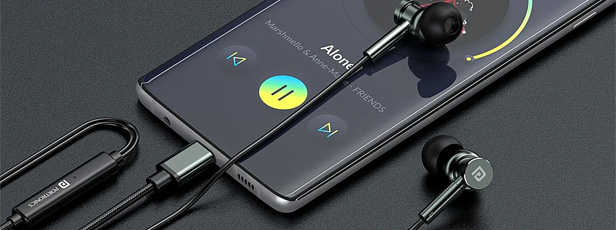
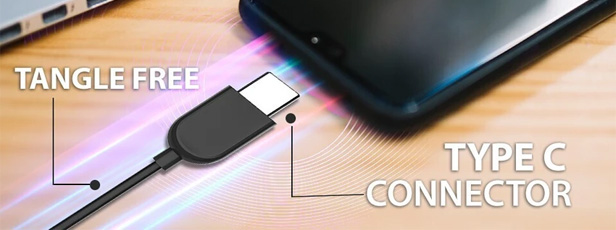
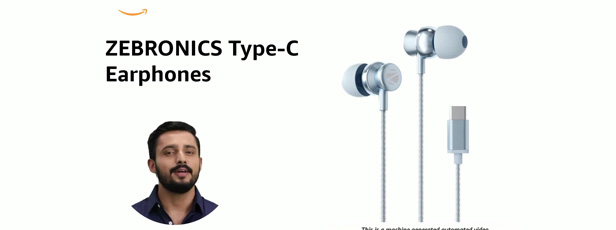
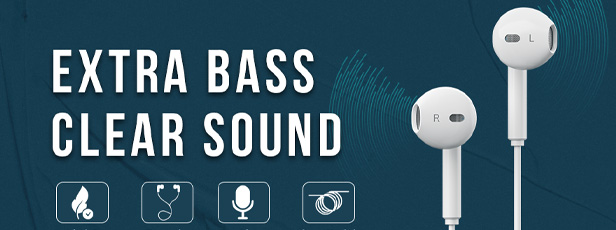
As smartphones evolve, most brands are phasing out the traditional 3.5mm headphone jack. In its place, the USB Type-C port has become the new standard. If you’re someone who prefers wired sound but has a device without the headphone jack, earphones with Type-C port under ₹1000 offer an affordable and convenient solution.
Whether it’s better sound delivery, faster pairing, or simply saving the trouble of carrying an adapter, these earphones are practical and future-ready.
✅ How We Selected These Type-C Earphones
Verified price under ₹1000
User reviews (3.5★ or above)
Sound & mic quality
Comfort and design
Durability and features like noise isolation or in-line controls
🔥 Top 10 Earphones with Type-C Port Under ₹1000
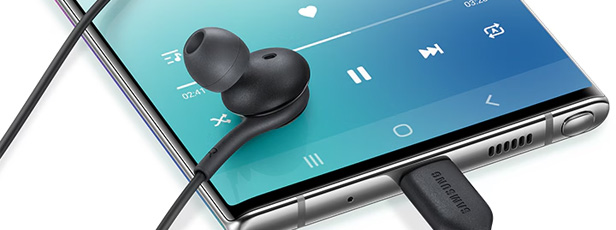
1. Samsung USB Type-C Earphones
Pros: Balanced sound signature, deep bass, tangle-free cable, great call quality. Cons: Slightly higher-end in this budget range; lacks volume control.
🧠 Things to Consider Before Buying Type-C Earphones Under ₹1000
✔ Compatibility: Ensure your phone supports Type-C audio (some only use it for charging).
✔ Audio Profile: Do you like bass-heavy sound or a balanced tone?
✔ Durability: Look for Kevlar or braided cables for long-term use.
✔ Mic & Button Functions: In-line control helps if you take calls frequently.
❓ Frequently Asked Questions
Q. Can I use Type-C earphones on all phones? A. Not always. Some phones (especially older ones) may not support audio via Type-C. Always check your device’s spec sheet.
Q. Do these earphones support fast charging or data transfer? A. No, these are strictly for audio use — not for charging or file transfer.
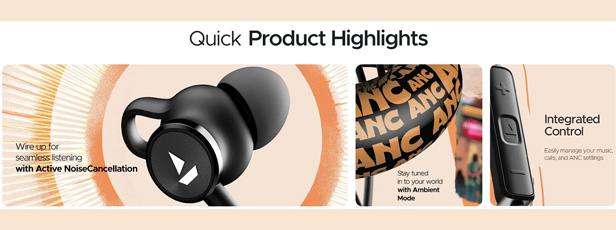
Q. Are they suitable for online classes or video calls? A. Yes. Models like Samsung and boAt 122 ANC offer good mic clarity for Zoom, Google Meet, etc.
🔍 Final Verdict – Best Type-C Earphones Under ₹1000
Use Case
Best Pick
Best Overall Value
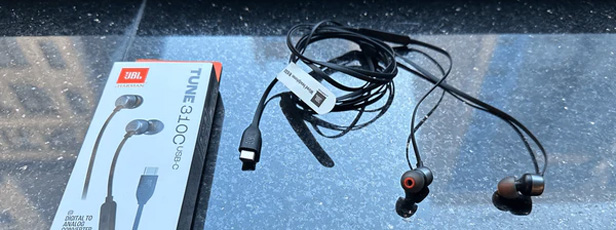
JBL Tune 310C
Best for Bass Lovers
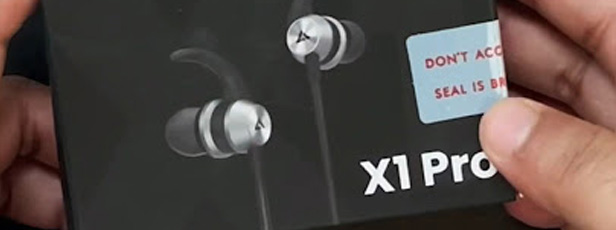
Boult Audio X1 Pro
Best for Calls
Samsung USB Type-C Earphones
Best ANC Budget Pick
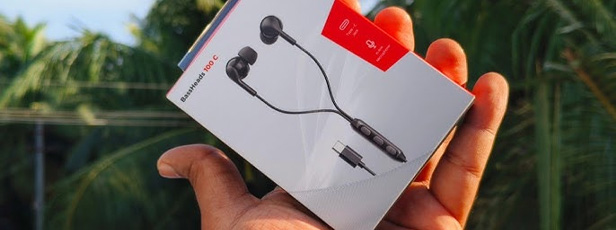
boAt BassHeads 122 ANC
Did this help you pick your next favorite earphones? Let us know in the comments or tag us with your purchase on Instagram!